Uploading a staff list
Each upload becomes a staff list in the engagement: one row per employee, classified and scored. Leads and analysts upload from the engagement's header or its Staff lists tab: Upload staff list. The page is read-only for anyone else, and says why (for example, the engagement is closed, or we're a viewer).
The page walks through up to four numbered steps and a final check. Nothing leaves the browser until we choose Upload.
The workbook is read on our machine, in a background worker. Only the columns we map are sent. Manager emails are turned into reporting lines, and email domains into Microsoft 365 tenants, before anything is uploaded; the emails themselves are only sent if someone with PII access chooses to store names and emails, and then they're encrypted.
Preparing the file
- Format: Excel (
.xlsx) or CSV. - Shape: one row per employee, with the headers in the first row.
- Size: up to 20 MB and 50,000 rows. A staff list holds up to 50,000 people after filtering.
- Required: a job title column. Everything else is optional, but more columns unlock more of the analysis:
| To get… | Include… |
|---|---|
| Rollups by business, division and department | Business, division, sub-division, department |
| Location salary factors and the offshore view | Location and/or country |
| The organisation chart, spans and layers | Manager's employee ID, or manager's email |
| Per-tenant Copilot licence counts | M365 tenant, or work email (we derive tenants from mail domains) |
| The client's own pay instead of benchmark salaries | Base salary (GBP), as an annual figure |
| Named licence lists, and matching a licensed-user export by email | Name and work email (stored only if we choose, encrypted) |
Locally, npm run demo:data writes a fictional 1,794-person staff list to demo-data/northwind-staff.csv for trying the whole flow.
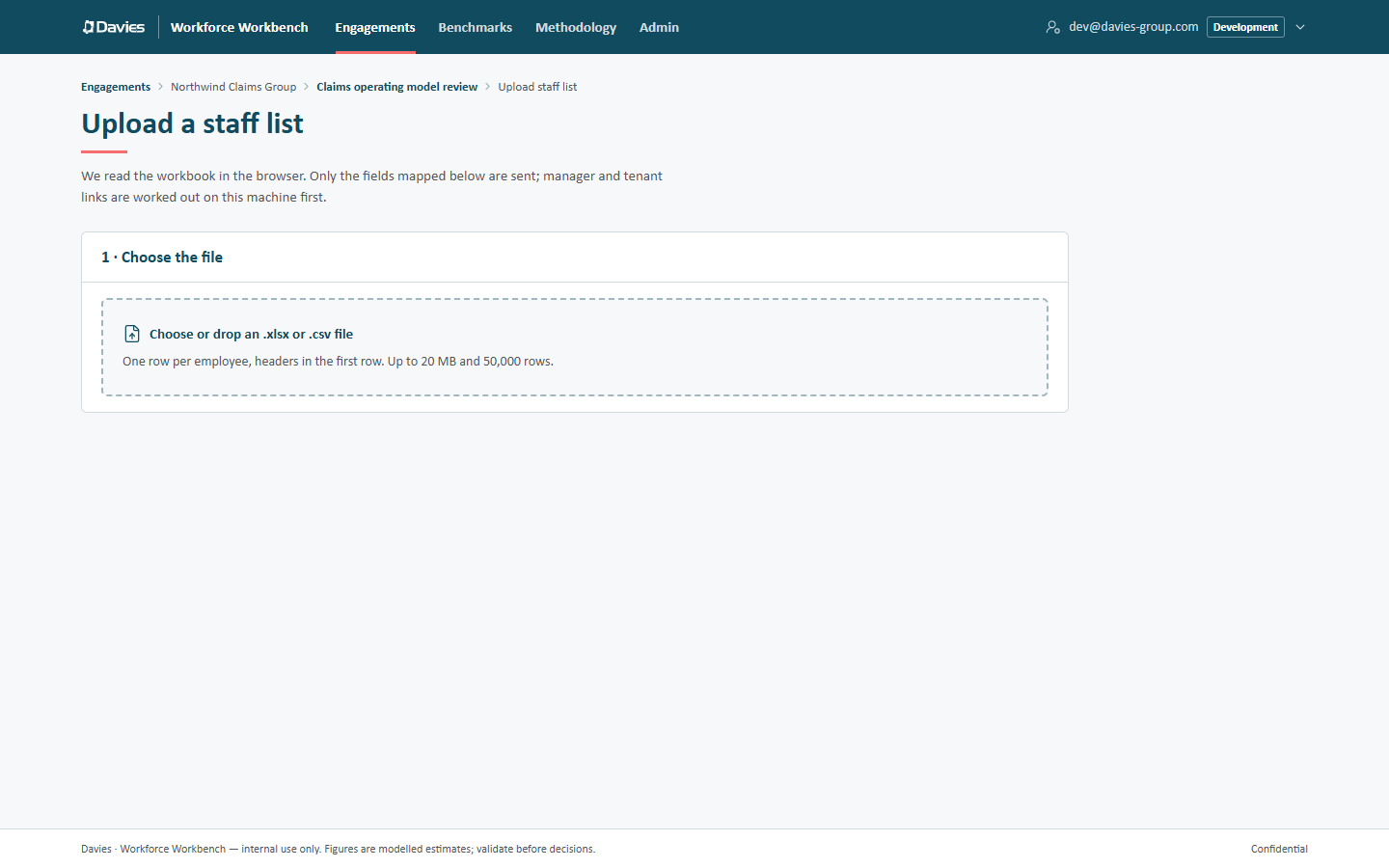
1 · Choose the file
Choose or drop the file on Choose or drop an .xlsx or .csv file. The Workbench reads it and reports the number of rows and columns. The staff list's name is set in the last step.
If the engagement already has a finished staff list whose headers match, We reused the column mapping from … appears: that staff list's mapping is applied wherever the same headers exist. Check it anyway.
2 · Map the columns
We guess each field from the headers (exact matches first, then partial ones, never using a column twice). Unmapped fields are simply left out. The fields are grouped:
Required
| Field | Notes |
|---|---|
| Employee ID | A stable key. If none is mapped, we number rows by their spreadsheet row. |
| Job title * | The only required field. Until it's mapped, the page says Map the job title column to continue. |
Organisation (drives the rollups, the org chart, location costs and per-tenant licence counts)
| Field | Notes |
|---|---|
| Business / root division | The top-level split used on the Overview (By business). |
| Division, Sub-division, Department | Further rollups and filters. Some taxonomy rules apply only within a named division. |
| Location | Free text such as London or Remote - UK; matched to a region by keyword. |
| Country | Matched exactly against each region's country values (for example GB or United Kingdom); takes priority over location. |
| M365 tenant | Or derive it from email domains below. |
| Base salary (GBP) | Overrides the benchmark salary when present. Values like £42,500, 42.5k and 45.5k are understood. Figures below £1,000 or above £10m a year are treated as data errors and left out (see Check and upload). |
| Manager's employee ID | Builds the reporting tree directly. |
People (personal data) (used in the browser to link managers and tenants; stored only if we choose to below)
| Field | Notes |
|---|---|
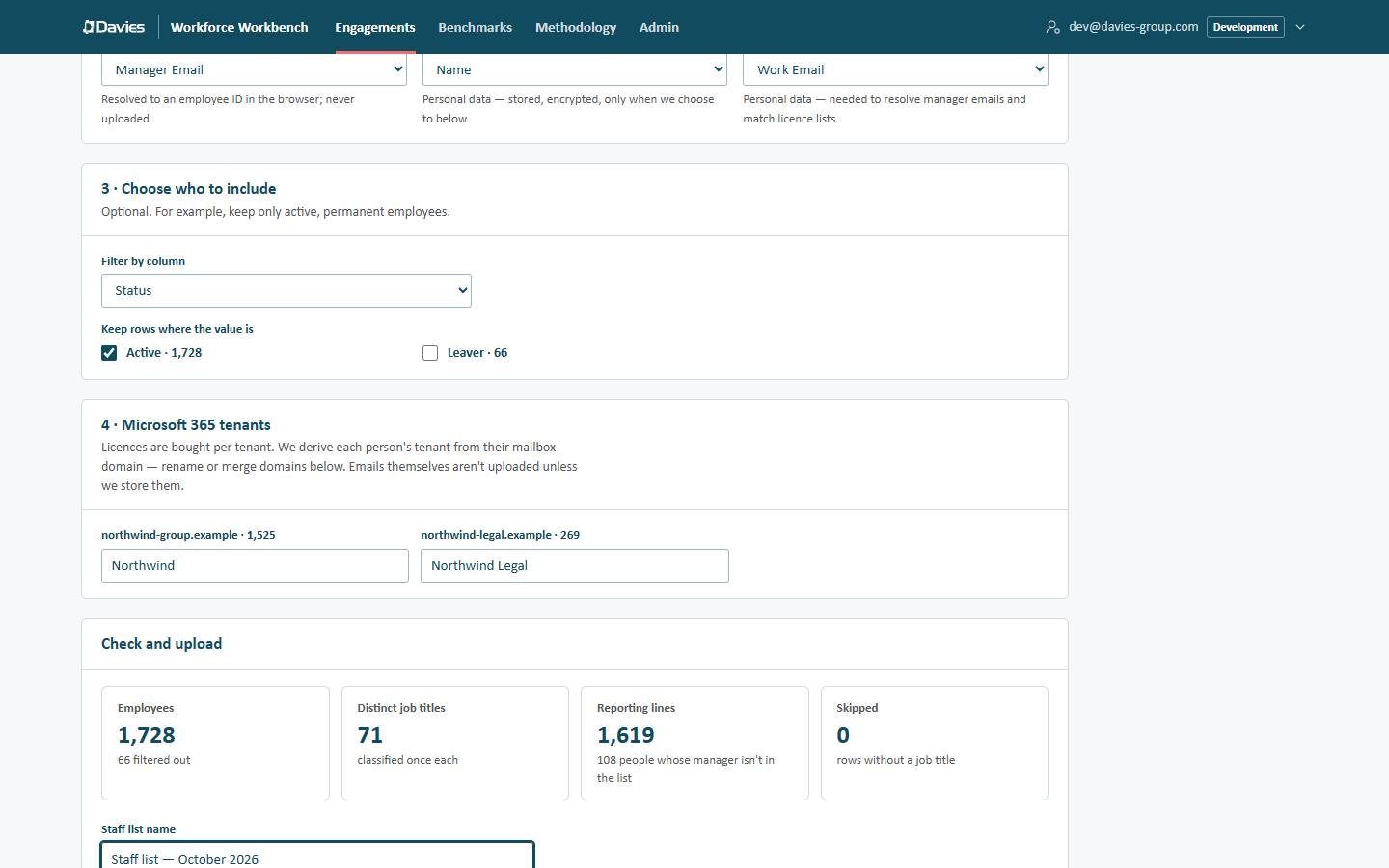
| Manager's email | Resolved to an employee ID in the browser; never uploaded. |
| Name | Personal data: stored, encrypted, only when we choose to below. |
| Work email | Personal data: needed to resolve manager emails, derive tenants and match licence lists. |
The next steps appear once Job title is mapped.
3 · Choose who to include
Optional. Filter by column, then tick the values to keep under Keep rows where the value is. Each value shows how many rows have it (the 50 most common values are listed). For example, filter on Status and keep only Active, or on Contract type and keep Permanent.
4 · Microsoft 365 tenants
This step appears when there's no tenant column but a work email column is mapped. Licences are bought per tenant, so we derive each person's tenant from their mailbox domain.
The twelve largest domains are listed with their headcounts, each with a suggested tenant name (keoghs.co.uk becomes Keoghs). Rename a domain's tenant, or give several domains the same name to merge them into one tenant. Smaller domains beyond the first twelve are left unassigned (shown as Unassigned in rollout plans).
Check and upload
The final card summarises what will be uploaded:
| Figure | Meaning |
|---|---|
| Employees | Rows that will be uploaded, and how many were filtered out. |
| Distinct job titles | Classified once each. |
| Reporting lines | Rows linked to a manager, with notes such as 108 people whose manager isn't in the list or 3 left unlinked: manager email shared by several people. |
| Skipped | Rows without a job title. |
Notices may follow:
- N rows repeat an employee ID. We keep them all, but the org chart uses the first.
- N salaries are outside £1,000 to £10.0m a year, so we left them out and use the benchmark salary instead. Hourly rates or codes in the salary column are the usual cause.
- N rows had no employee ID; we numbered them by spreadsheet row.
- Too many people for one staff list, when more than 50,000 rows remain after filtering: filter the rows or split the file.
Then:
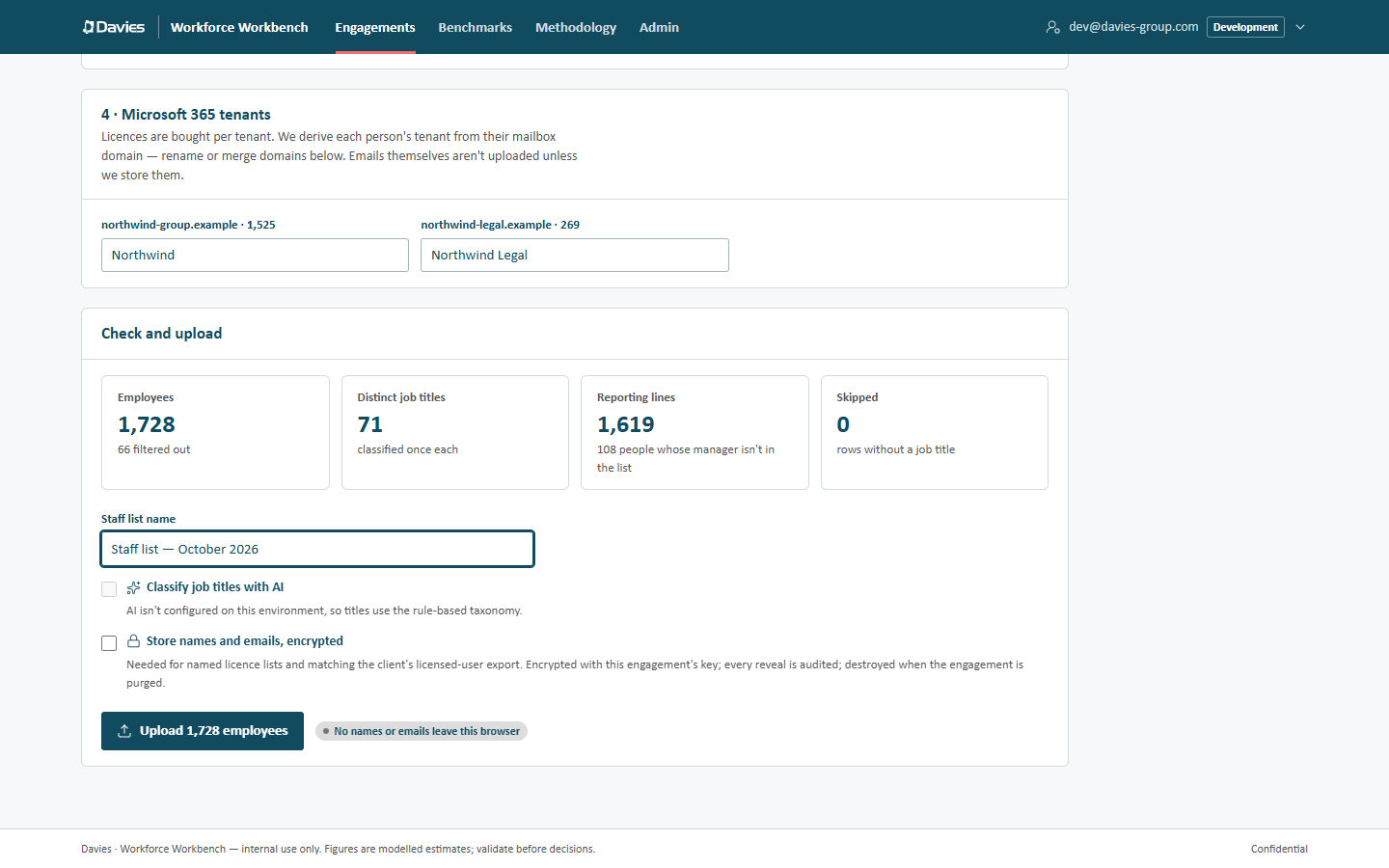
- Staff list name, for example Staff list — June 2026.
- Classify job titles with AI: on by default when AI is configured. We send each distinct job title (never names or rows) to the AI classifier, after checking consultant overrides, the industry pack and the shared cache. Titles it can't place use the rule-based taxonomy. When AI isn't configured on the environment, the box is disabled and says AI isn't configured on this environment, so titles use the rule-based taxonomy. The choice is stored with the staff list, so resuming classification later never uses AI if it was off here.
- Store names and emails, encrypted: available only when a name or email column is mapped and we have PII access (otherwise the hint says which is missing). Needed for named licence lists and matching the client's licensed-user export. They're encrypted with the engagement's key, every reveal is audited, and they're destroyed when the engagement is purged.
The pill beside the button says either Names & emails will be encrypted or No names or emails leave this browser.
Choose Upload N employees.
What happens next
Progress appears under the button:
- Creating the staff list.
- Uploading N of M rows, in chunks of 2,000, three at a time. A chunk that fails is retried automatically.
- Collecting distinct job titles.
- Classifying N of M job titles, a few hundred at a time. If AI isn't available (switched off, not configured, or the monthly budget is spent), a note explains why and the rules are used.
When classification finishes, the staff list is scored and we're taken to its Overview. A few thousand people take seconds.
If it stops part-way
If something fails, The upload stopped explains what went wrong. What to do depends on how far it got:
- While classifying (the staff list shows Classifying): the rows are safe. Open the engagement's Staff lists tab and choose Continue beside the staff list. Continue only resumes classification, with the AI choice made at upload.
- While uploading rows (the staff list shows Upload incomplete): it can't be resumed. Delete the staff list on the Staff lists tab and upload the file again.
After the upload
- Classifications shows how each title was classified, with a salmon count on the tab when some need review. See Classifications and overrides.
- The staff list records the reference data version it was scored with.
- Each refresh of the client's staff list should be uploaded as a new staff list, so the two can be compared. The column mapping is reused automatically.
For what to ask the client for, and how to tidy a file before uploading, see Preparing a staff list. To upload a refreshed list and compare it with the last one, see Refresh with a new staff list.