Team and roles
Only people on an engagement's team can see it. Each member has one role and, separately, may have PII access. Leads manage the team on the engagement's Team tab.
Engagement roles
| Role | Can |
|---|---|
| Viewer | Read reports and export deliverables that contain no names. Changes nothing: screens that a viewer can't change say so, and their inputs are disabled. (The Copilot case tab's assumptions are a scratch model that's never saved, so anyone can try them.) |
| Analyst | Everything a viewer can, plus upload data, review and override classifications, change assumptions, generate AI text, build and save rollout plans, and export. |
| Lead | Everything an analyst can, plus manage the team, change the engagement's settings and its report wording, close, reopen or purge it, and read its audit trail. |
Writing (uploading, overriding, saving assumptions and plans, changing settings) is only possible while the engagement is active. A closed engagement is read-only for everyone until a lead reopens it, and each read-only screen names the reason.
The Workbench refuses to remove or demote the last lead: An engagement needs at least one lead. Make someone else lead first.
PII access
PII access (access to names and emails) is a per-member permission, independent of role. It lets someone:
- store names and emails when uploading a staff list (encrypted);
- reveal names in the Explorer and the organisation chart;
- match a client's list of emails (licensed users, named cohorts) against the encrypted index;
- export the Copilot allocation workbook with names.
Every one of these is recorded in the audit trail with a stated purpose. Grant PII access only when the work needs names. See Names, emails and personal data.
Not by role, and not as an administrator. The creator of an engagement is its first lead with PII access; everyone else has it only if another lead (or an administrator) ticks the box for them. Nobody can grant access to names and emails to themselves, administrators included: the Workbench refuses it (Nobody can grant themselves access to names and emails; another lead on this engagement can.) and the database enforces the same rule.
Managing the team
The Team table lists each member with their role, PII access and the date they were added. Leads see editable controls:
- change a member's Role from the drop-down;
- tick or clear PII access. On our own row the box is disabled unless it's already ticked (Another lead or an administrator grants us access to names and emails.); we can still clear our own access;
- remove someone with Remove (on our own row its tooltip reads Leave the team).
Each change takes effect at once and is recorded in the audit trail (Added team member, Changed team member, Removed team member). Members who aren't leads see the team as a list, with Yes or No for PII access.
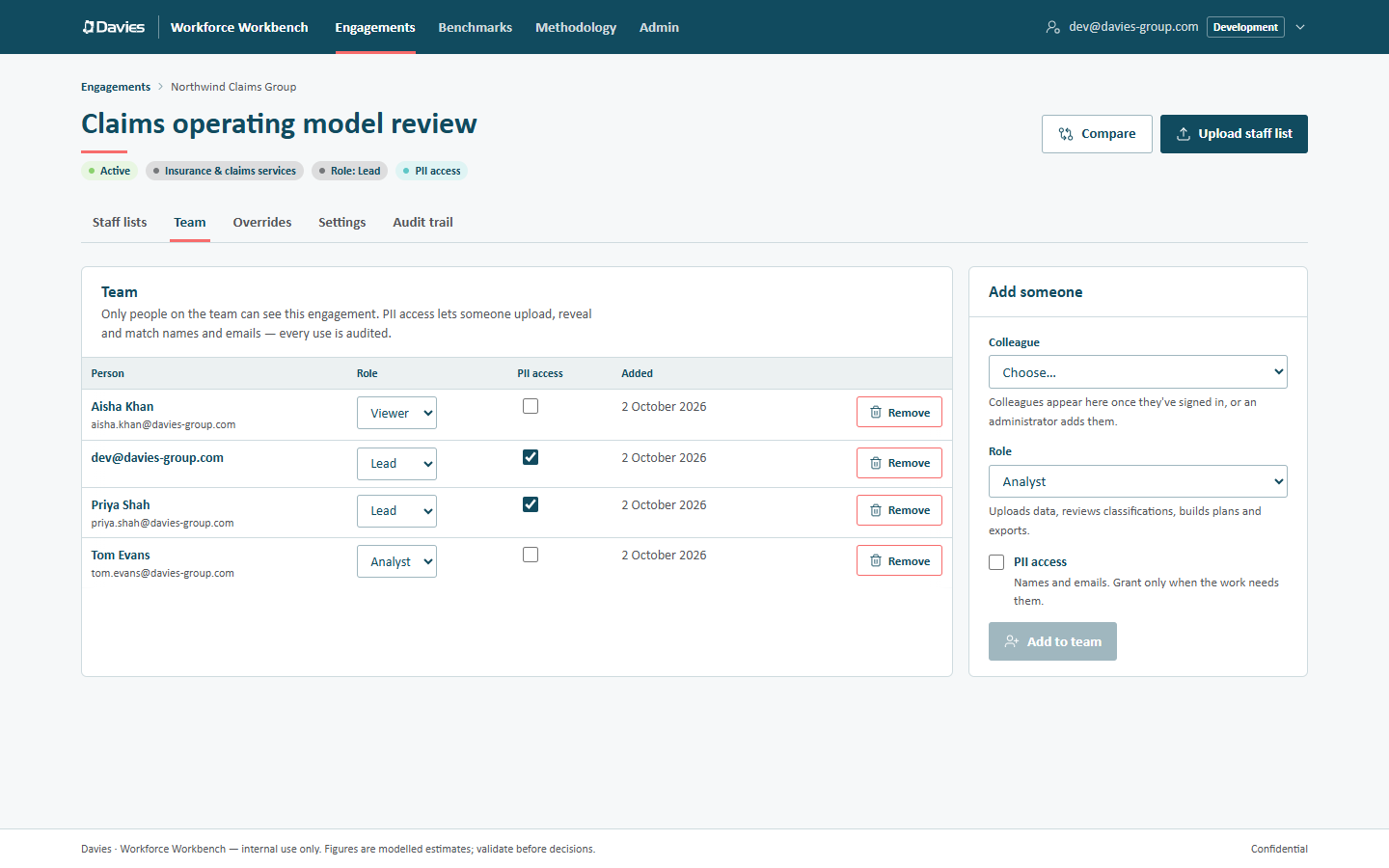
Adding someone
In the Add someone card:
- Colleague: choose from active users who aren't already on the team. Colleagues appear here once they've signed in, or an administrator adds them.
- Role: the hint below describes what the role can do.
- PII access: Names and emails. Grant only when the work needs them.
- Choose Add to team.
If a colleague is missing from the list, they either haven't signed in yet or have been deactivated. An administrator can add them in advance on Admin → Users.
Administrators
A platform administrator can see and act on every engagement as if they were its lead (the engagement list shows Admin view where they aren't on the team), and can delete an engagement outright. Administrators are the only people who see the Admin area.
Administrators do not get PII access by virtue of being administrators, and can't grant it to themselves. An administrator who needs names on an engagement asks one of its leads (or another administrator) to grant it. The database itself enforces this.
Leaving the business
When someone leaves, an administrator deactivates them on Admin → Users. Their access ends everywhere immediately (membership only counts for active users), and their audit history stays.
Step by step: Share an engagement.