Signing in and finding your way around
Signing in
In staging and production, the whole Workbench sits behind Cloudflare Access using Davies single sign-on. There's no separate Workbench password or sign-in page: we open the Workbench address, Access sends us to the Davies identity provider if we aren't already signed in, and then the app loads.
While the app starts, it shows Signing in….
The first time
The first time we sign in, the Workbench creates our account automatically, as long as our email domain is on the platform's allowed list. New accounts are members: they can create clients and engagements and see engagements they're staffed on. Administrators are set up by an existing administrator, or from the platform's bootstrap list at deployment.
If our domain isn't allowed, the app shows This account hasn't been set up yet: Workforce Workbench is open to invited staff only. An administrator can add this account from Admin › Users. It's a permission message, not an error, so there's no retry button: retrying won't help until an administrator acts (see Users).
Colleagues appear in an engagement's team picker once they've signed in at least once, or once an administrator has added them. If someone needs to go straight onto a team before their first visit, ask an administrator to add them first.
If our account is deactivated
A deactivated account is refused straight away. Instead of an error and a retry button, the app shows This account has been switched off: An administrator has deactivated this Workforce Workbench account. If we still need access, an administrator can switch it back on from Admin › Users. Our audit history stays.
Signing out
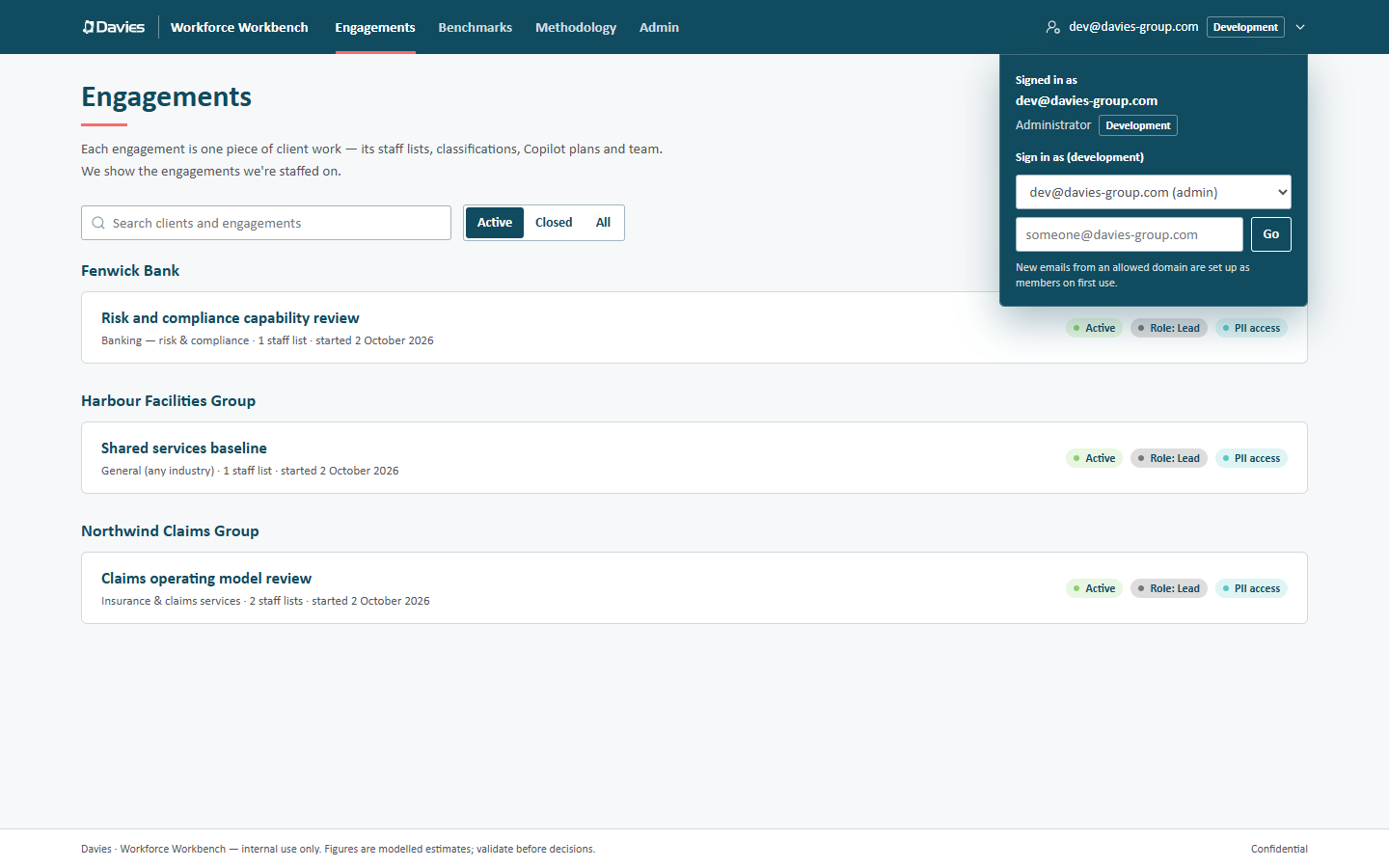
Open the account menu at the right of the top bar (our name or email, with a small arrow). It shows:
- Signed in as: our name and email;
- our platform role: Administrator or Member;
- Add your name (or Change your name). Single sign-on gives the Workbench our email address but not our name, so until we add one, colleagues see our email in teams and audit trails. Saving an empty name goes back to showing the email;
- an environment badge (for example Staging, or Development locally) when we're not in production;
- Sign out, which ends the Cloudflare Access session for the Workbench.
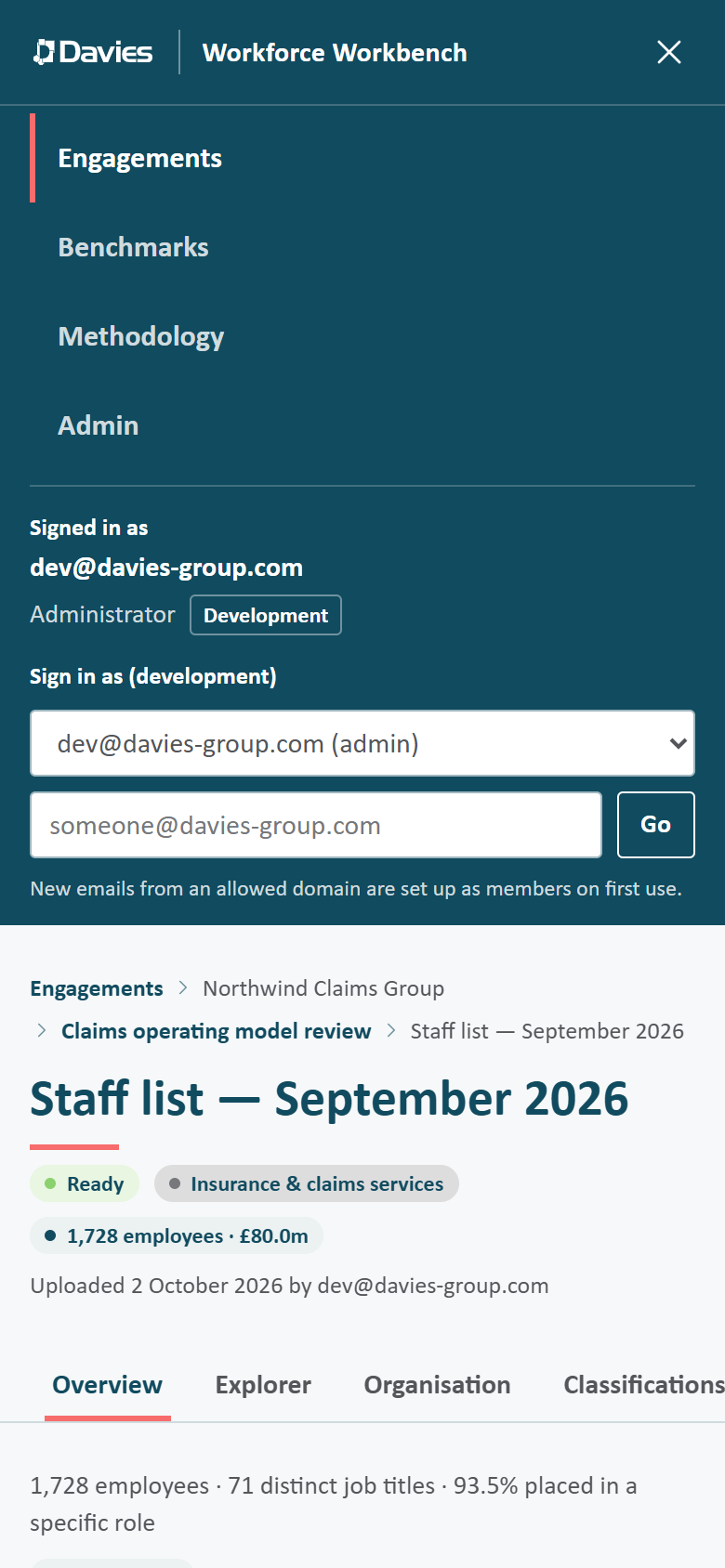
On narrow screens, the same content is at the foot of the menu opened from the Menu button.
When a new version is released
When a new version of the Workbench is deployed while we have it open, a card at the foot of the screen says A new version of the Workbench is available. Refresh now loads it; anything saved is kept, but finish or save what's on the page first. Later hides the card until the next release.
If we keep working on the old version and open a page or start an export that the new version has replaced, the Workbench reloads once onto the new version by itself, keeping the page we were going to.
When a session expires
Cloudflare Access sessions last a limited time. When ours lapses, the Workbench notices on its next request and reloads the page once, which sends us back through single sign-on and then returns us to where we were. We don't lose anything that was saved.
If the reload doesn't fix it (for example, sign-in itself is failing), the app stops retrying within 30 seconds and shows The sign-in session has expired. Reload the page to sign in again. Reloading manually starts again.
Work that hasn't been saved (an unsaved rollout plan, assumptions we were trying, a half-mapped upload) lives only in the browser tab. Save rollout plans and assumptions before stepping away for long.
Development sign-in
When the Workbench runs locally (npm run dev) or in the automated tests, there's no Cloudflare Access. We're signed in as dev@davies-group.com, an administrator.
In this mode the account menu shows Sign in as (development) instead of Sign out:
- choose any active user from the list to act as them (administrators are marked (admin));
- or type another email and choose Go. A new email from an allowed domain is set up as a member on first use;
- Back to the default development user returns to
dev@davies-group.com.
Switching reloads the app as the chosen user. This is how we try out roles and PII access locally without editing code. Development sign-in is refused outright in staging and production.
Finding your way around
The top bar
The dark teal bar at the top holds the Davies logo, the product name and the global destinations:
| Destination | What's there |
|---|---|
| Engagements | Every engagement we're staffed on, grouped by client. Engagement and staff list pages sit under this item. |
| Benchmarks | Cross-engagement medians. See Benchmarks. |
| Methodology | How the model works, with the reference data version in use. See Provenance and methodology. |
| Admin | Administrators only. See Administration. |
The current destination has a salmon underline. Below tablet width, the destinations move into a Menu opened from the bar, with the account details at its foot.
Breadcrumbs and tab strips
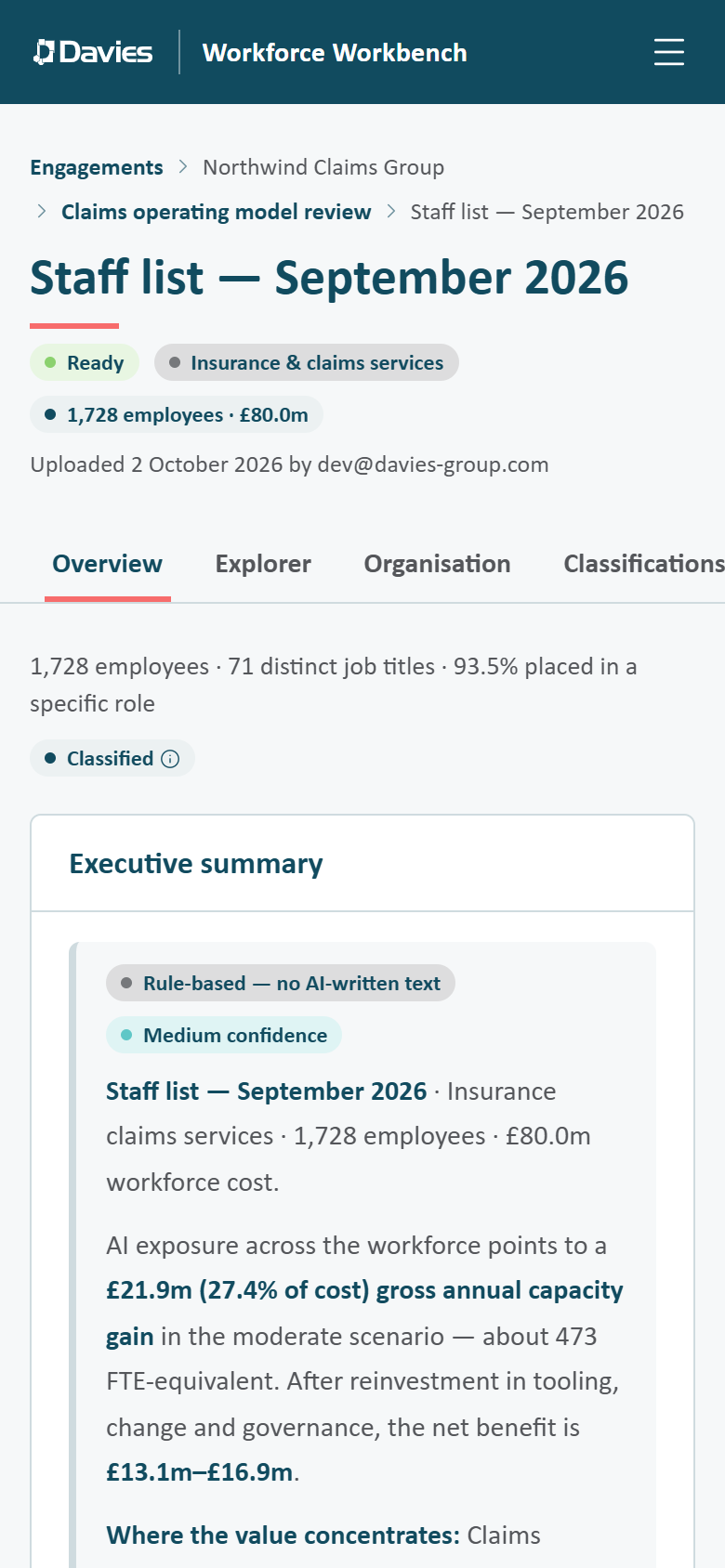
Engagement and staff list pages show a breadcrumb (Engagements › Client › Engagement › Staff list) and a tab strip:
- an engagement has Staff lists, Team, Overrides, Settings and, for leads and administrators, Audit trail;
- a staff list has Overview, Explorer, Organisation, Savings by group, Classifications, Copilot case, Rollout plan, Exports and Assumptions. The Classifications tab carries a salmon count when titles need review. Once the engagement's personal data has been purged, only Overview and Exports remain, and an old link to any other tab opens the Overview;
- Admin has Users, Classification cache, Audit trail, Reference data, Prompt Lab and AI usage.
On narrow screens the tab strip scrolls sideways and keeps the current tab in view, and wide tables scroll sideways within the page.
Status pills
Engagements and staff lists carry small coloured labels:
| Pill | Meaning |
|---|---|
| Active, Closed, Personal data purged | The engagement's lifecycle. |
| Role: Lead, Role: Analyst, Role: Viewer | Our role on the engagement. Admin view means we're an administrator who isn't on the team. |
| PII access | We may store, reveal and match names and emails on this engagement. |
| Ready, Classifying, Upload incomplete, Summary only | A staff list's status. |
Read-only screens
When we can't change something, the screen says why rather than leaving controls that don't work. On the engagement Settings, Classifications, Assumptions and Rollout plan tabs and the upload page, a Read-only notice names the reason (the engagement is closed, its personal data has been purged, or we're a viewer), and the inputs that couldn't be saved are disabled.
The footer
Every page ends with Davies · Workforce Workbench — internal use only. Figures are modelled estimates; validate before decisions. and Confidential.