A first look, in fifteen minutes
This tour walks through one engagement from the demo data, end to end: reading the report, checking how job titles were classified, trying an assumption, looking at the Microsoft 365 Copilot case, exporting a deliverable and comparing two staff lists. It takes about fifteen minutes and needs no client data.
The three clients, their staff, names and emails are fictional. The figures quoted below are what the demo shows with the current reference data; if the reference data or the demo changes, the numbers on screen may differ slightly. The steps don't.
Before we start: the demo data
The demo data lives in a development environment, never in production.
- Developers run
npm run dev, thennpm run demo:seedagainst a fresh local database. The seed uploads the demo staff lists through the real upload path and sets up the people, engagements, overrides and plans described below. See the developer guide's Local setup. - Trainers and consultants ask a developer or an administrator for a development environment that has been seeded with the demo data.
The demo contains:
| Client | Engagement | What it shows |
|---|---|---|
| Northwind Claims Group | Claims operating model review (insurance pack) | Two staff lists to compare, Staff list — September 2026 (with names and emails stored) and Staff list — January 2027; a saved Copilot rollout plan; a changed assumption. |
| Northwind Claims Group | 2025 claims discovery | A closed engagement. |
| Fenwick Bank | Risk and compliance capability review (banking pack) | Classification overrides by standard occupation, and a rollout plan. |
| Harbour Facilities Group | Shared services baseline (general pack) | A staff list scored with an older reference data version, so it offers a rescore; titles waiting for review. |
| Harbour Facilities Group | 2025 pilot | An engagement whose personal data has been purged (Summary only). |
Locally we're signed in as dev@davies-group.com, an administrator who created every demo engagement and so leads each one with access to names and emails. The demo also has a team: Meera Singh (administrator), Priya Shah (lead), Tom Evans (analyst), Aisha Khan (viewer) and Sam Jones (deactivated). The account menu's Sign in as (development) switches between them, which is the quickest way to see what each role sees.
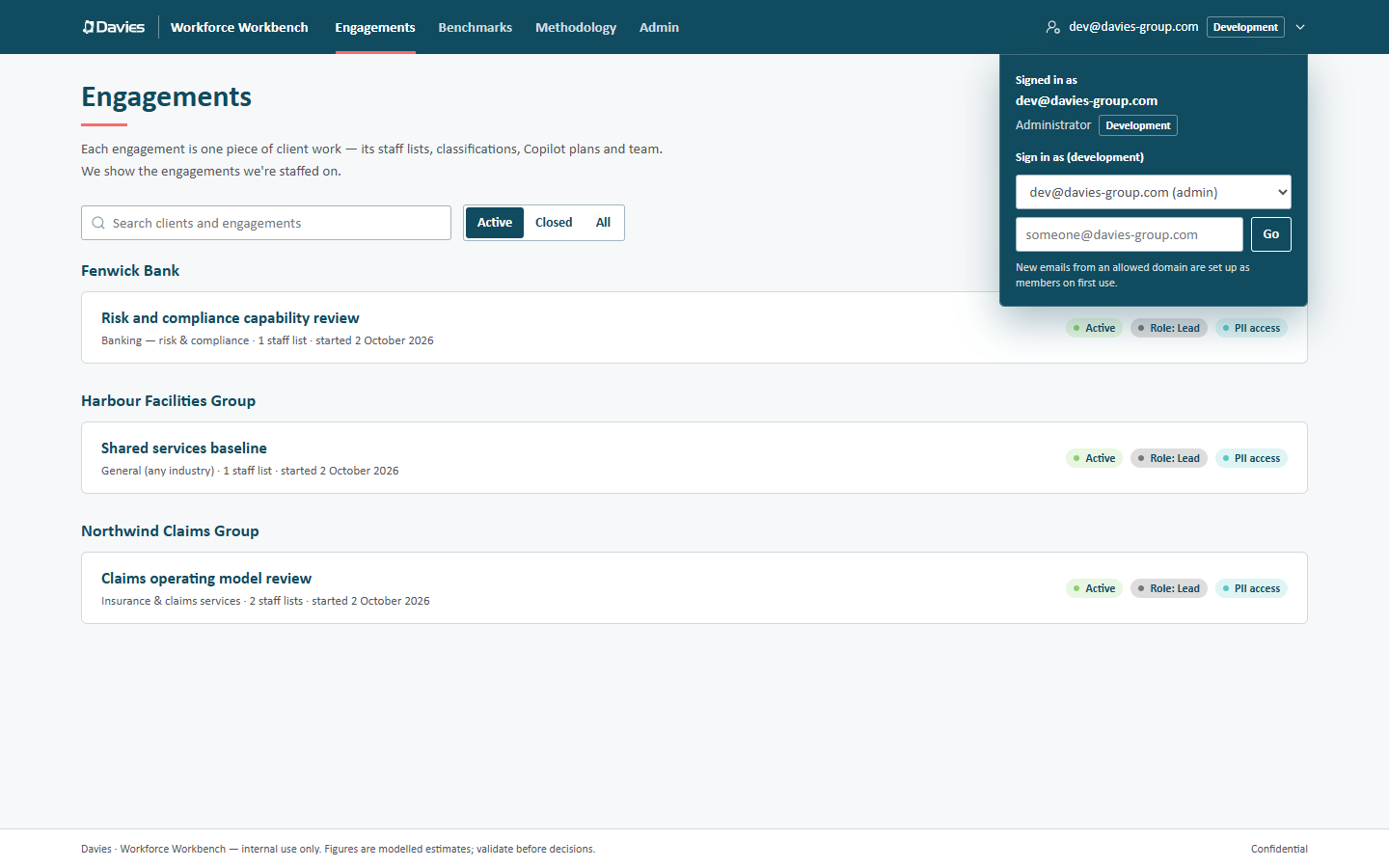
The account menu. In development, Sign in as switches between the demo people.
1 · Find the engagement (1 minute)
The Engagements page lists the engagements we're staffed on, grouped by client. The Active, Closed and All filters and the search box narrow the list; each card shows the engagement's status, industry pack, our role and whether we have PII access (access to names and emails).
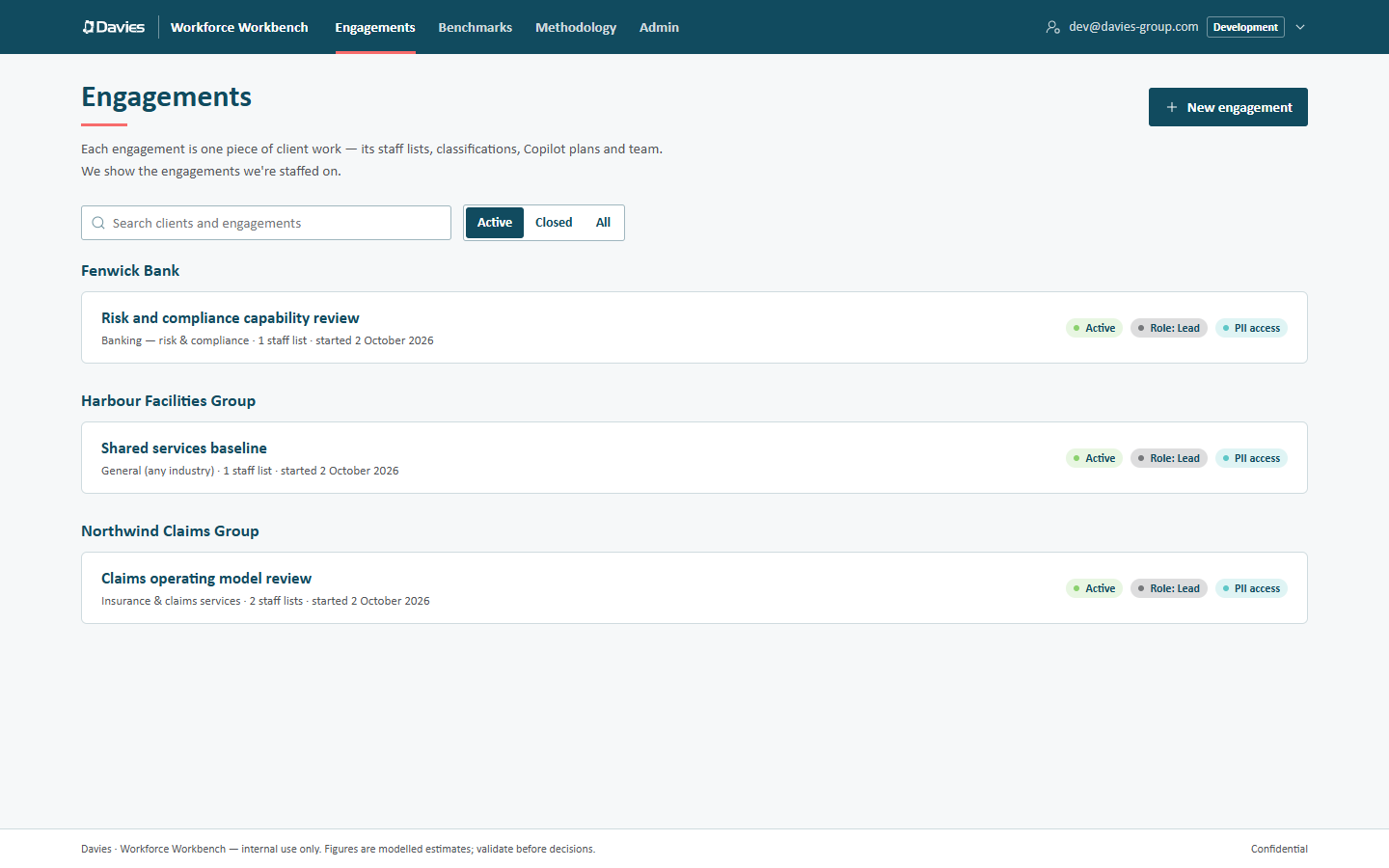
The Engagements page with the demo data.
Open Claims operating model review under Northwind Claims Group. Its Staff lists tab shows the two uploads. Staff list — September 2026 says Names & emails stored; the January list doesn't.
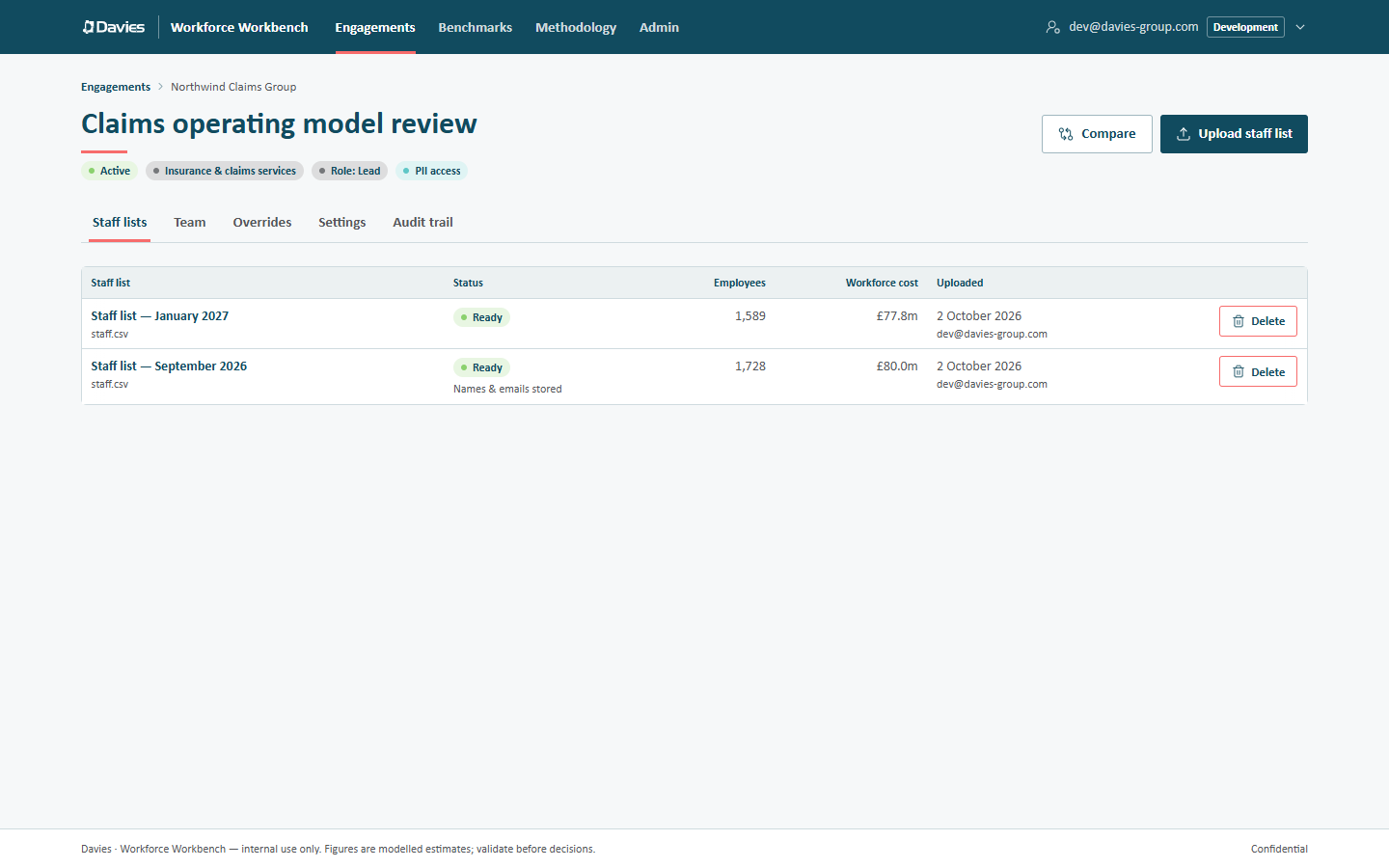
An engagement's staff lists, with Compare and Upload staff list in the header.
2 · Read the report (3 minutes)
Open Staff list — September 2026. It lands on the Overview tab, which is the report: everything the HTML report and the PowerPoint deck contain, on one page.
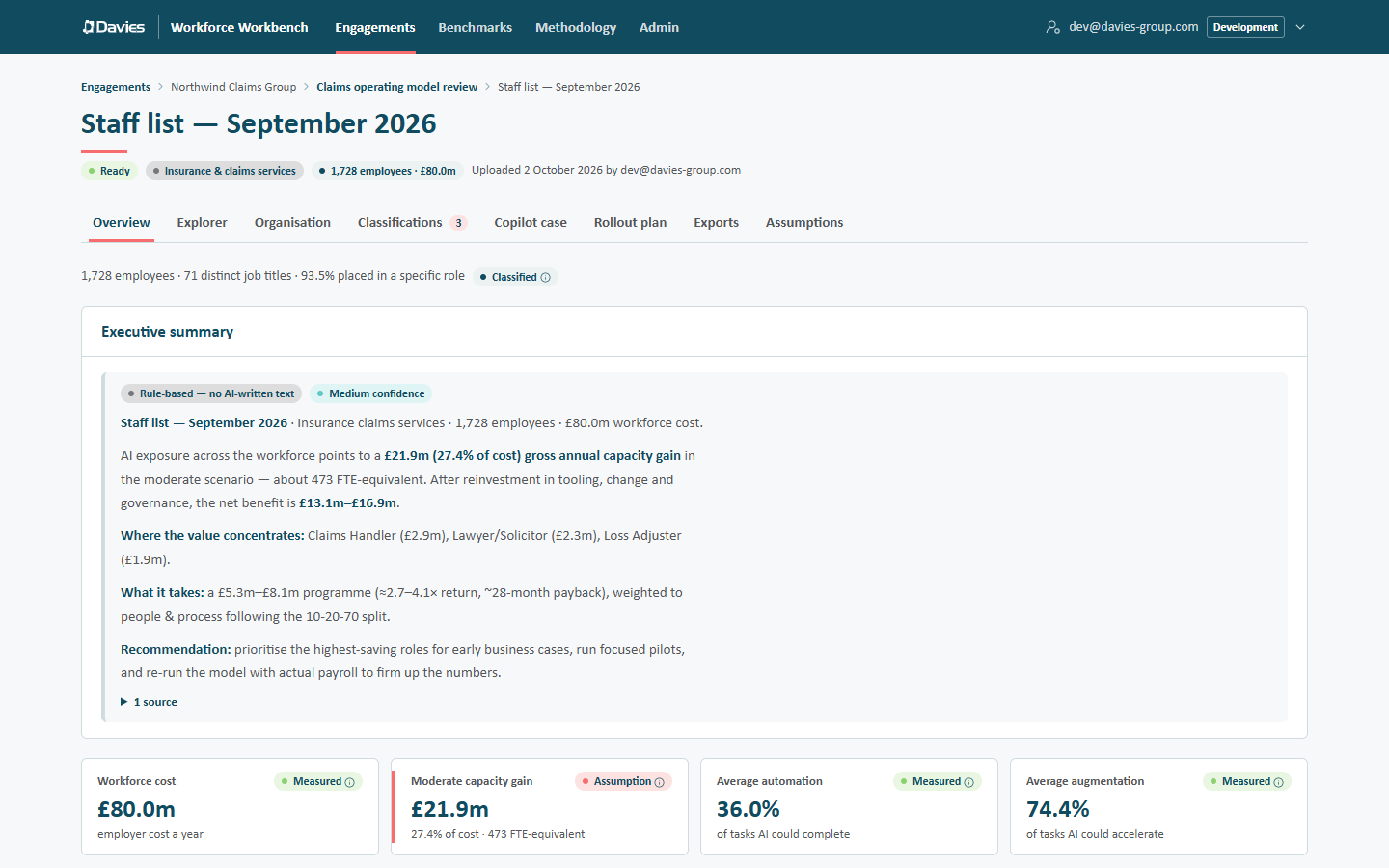
The Overview: the coverage line, the executive summary and the headline figures.
Things to notice:
- The coverage line: 1,728 employees · 71 distinct job titles · 93.5% placed in a specific role. The last figure is the share of people whose title landed on a specific role rather than Other / Uncategorised.
- The executive summary is labelled. In the demo it reads Rule-based — no AI-written text, because AI isn't usually configured on a development machine. Where AI is available, leads and analysts can choose Write with AI, and the result is labelled as AI-written with its confidence and sources.
- The headline figures: Workforce cost (£80.0m), Moderate capacity gain (£21.9m, 27.4% of cost, 473 FTE-equivalent), Average automation and Average augmentation.
- The provenance badges beside each figure (Measured, Assumption and so on). Select one to see where the figure comes from. Assumption badges are salmon so they stand out.
Scroll down to the three scenarios. Test other realisation rates has two sliders; move them and the capacity figure changes at once. Nothing is saved: the scenario presets are reference data that administrators manage.
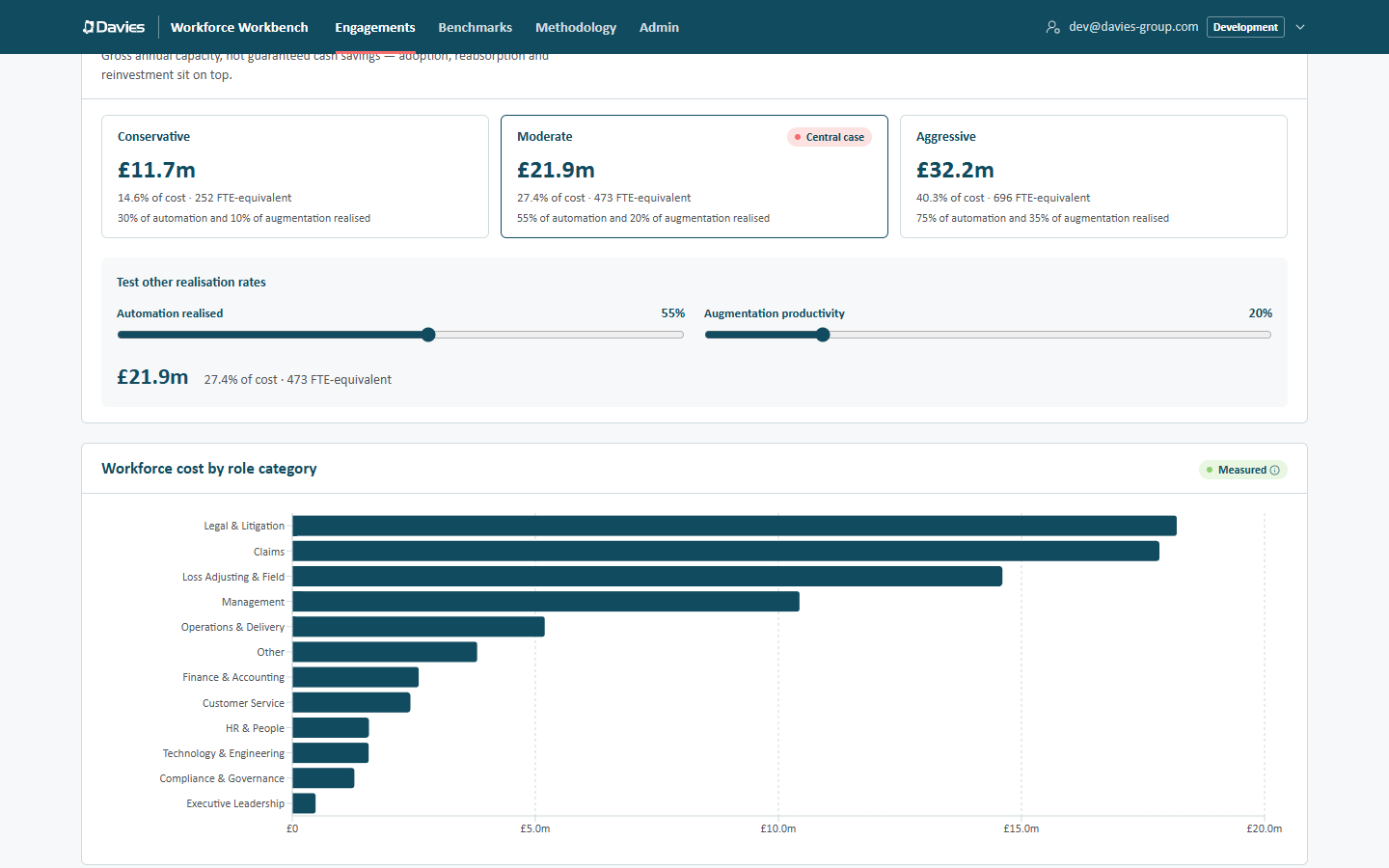
The scenarios, the realisation-rate sandbox and the cost by role category.
Every capacity figure is gross annual capacity, not guaranteed cash savings. Adoption, reabsorption and reinvestment sit on top, and we validate figures with the client before anyone decides anything on them.
See The report for every card on the page.
3 · Check the classifications (3 minutes)
Each distinct job title is classified once, and every person with that title inherits it, so a wrong classification moves the figures for everyone holding the title. Open the Classifications tab. The salmon count on the tab (3) is the number of titles waiting for review.
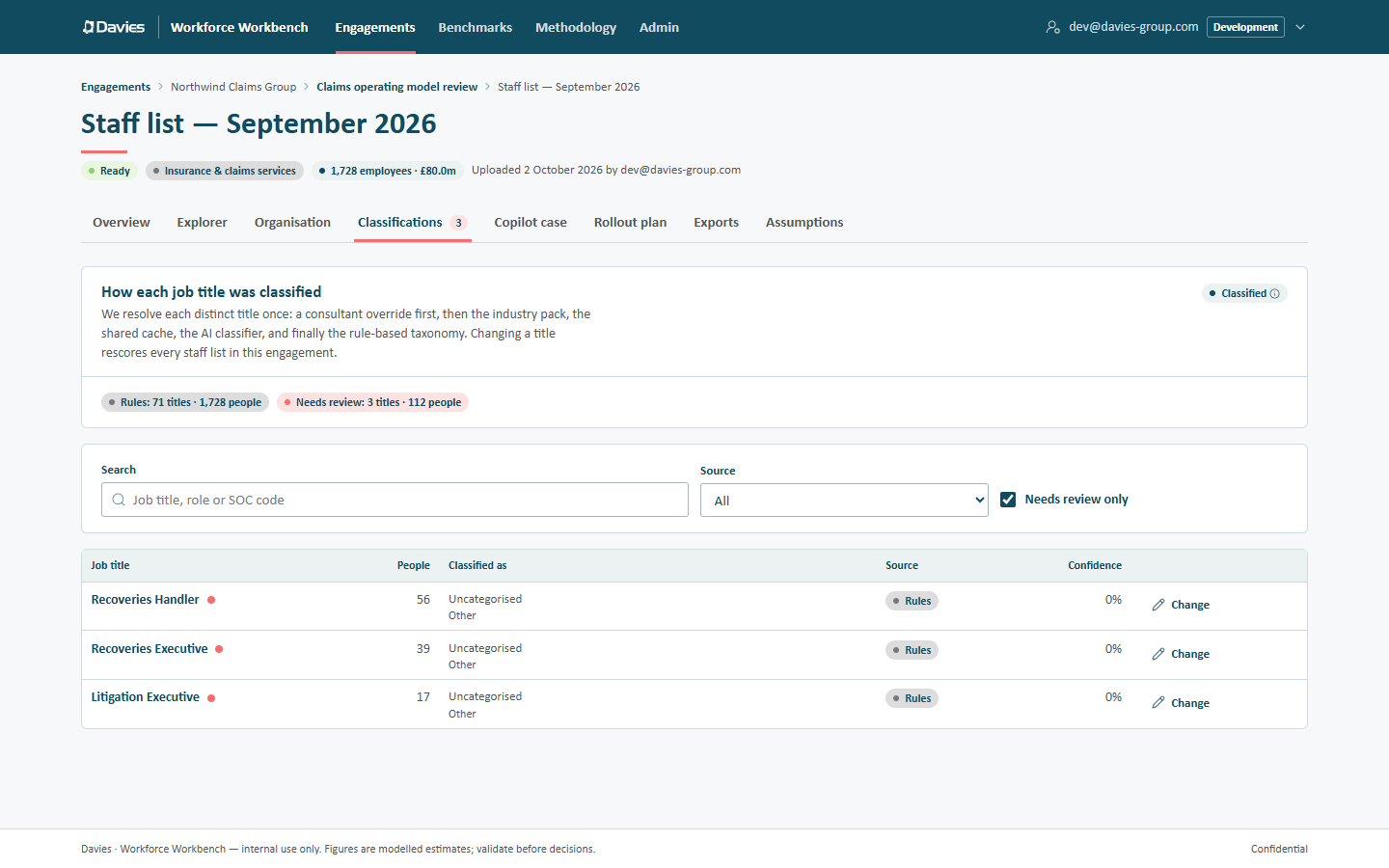
Three titles need review: no rule recognised them, so they landed on Other / Uncategorised.
In the demo, Recoveries Handler (56 people), Recoveries Executive (39) and Litigation Executive (17) need review: 112 people in all. To try an override, choose Change beside Recoveries Handler:
- Choose Workbench role (or Standard occupation (SOC) to pick the occupation codes directly).
- Pick a role, for example Claims › Claims Handler. In a real engagement we'd confirm this with the client first.
- Fill in Why, for example Recovery handlers work claims files; confirmed with the client.
- Choose Save and rescore.
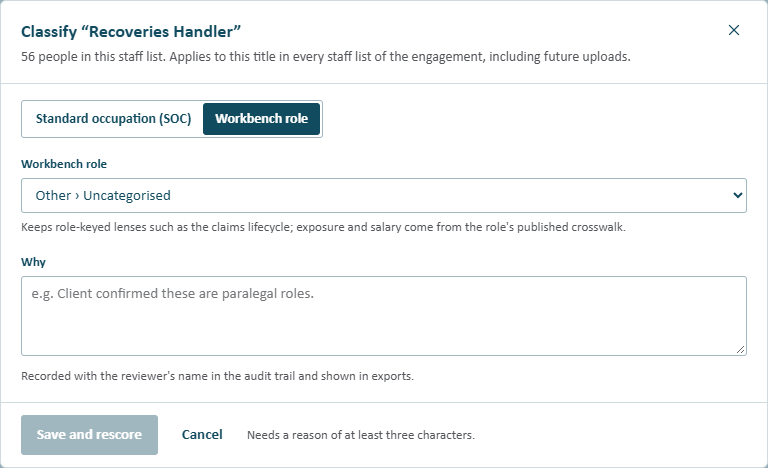
The override dialog. The override applies to the title in every staff list of the engagement, including future uploads.
Both Northwind staff lists are rescored straight away, the title leaves the review queue, and the override appears on the engagement's Overrides tab, from where it can be removed again. See Correct a classification.
Overrides, saved assumptions and plans are real changes to the demo database. That's fine for practice; a developer can reseed a fresh database to start again.
4 · Try an assumption (2 minutes)
Open the Assumptions tab. The Effect panel compares the Saved figures with the figures With changes as we type.
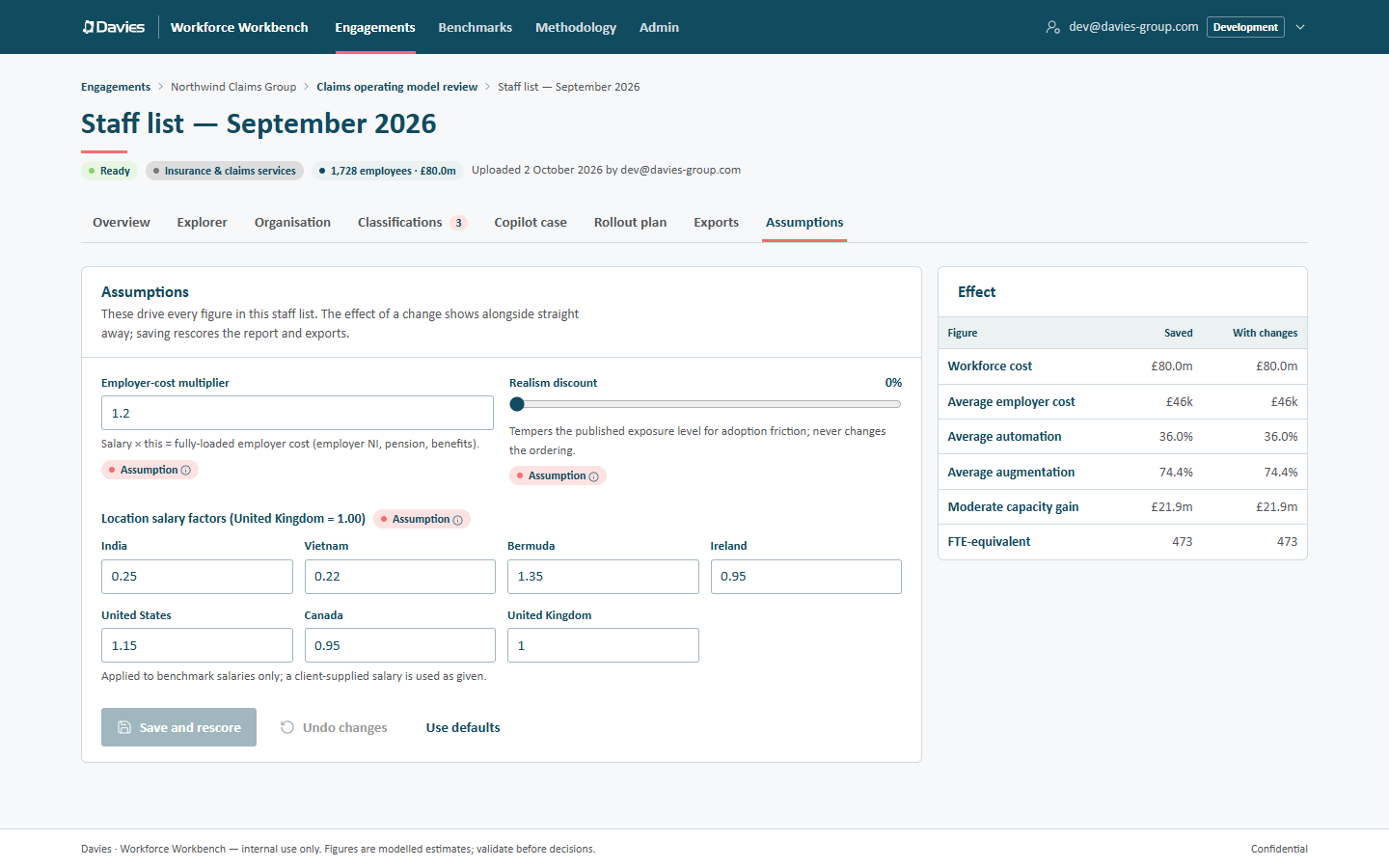
Assumptions on the left; their effect on the right, before anything is saved.
Try changing the Employer-cost multiplier from 1.2 to 1.25, or moving the Realism discount, and watch Workforce cost and Moderate capacity gain move in the With changes column. Then:
- Undo changes returns to the saved values (the right choice for this tour);
- Save and rescore would save them and rescore the report and exports;
- Use defaults fills in the reference data defaults.
Each staff list keeps its own assumptions. In the demo, the January list's multiplier was saved at 1.25, which matters in step 7. See Assumptions.
5 · Look at the Copilot case and the rollout plan (2 minutes)
Open the Copilot case tab. It values Microsoft 365 Copilot for this workforce by fit tier (how central Word, Outlook, Teams, Excel and PowerPoint are to each role's day), against the licence price.
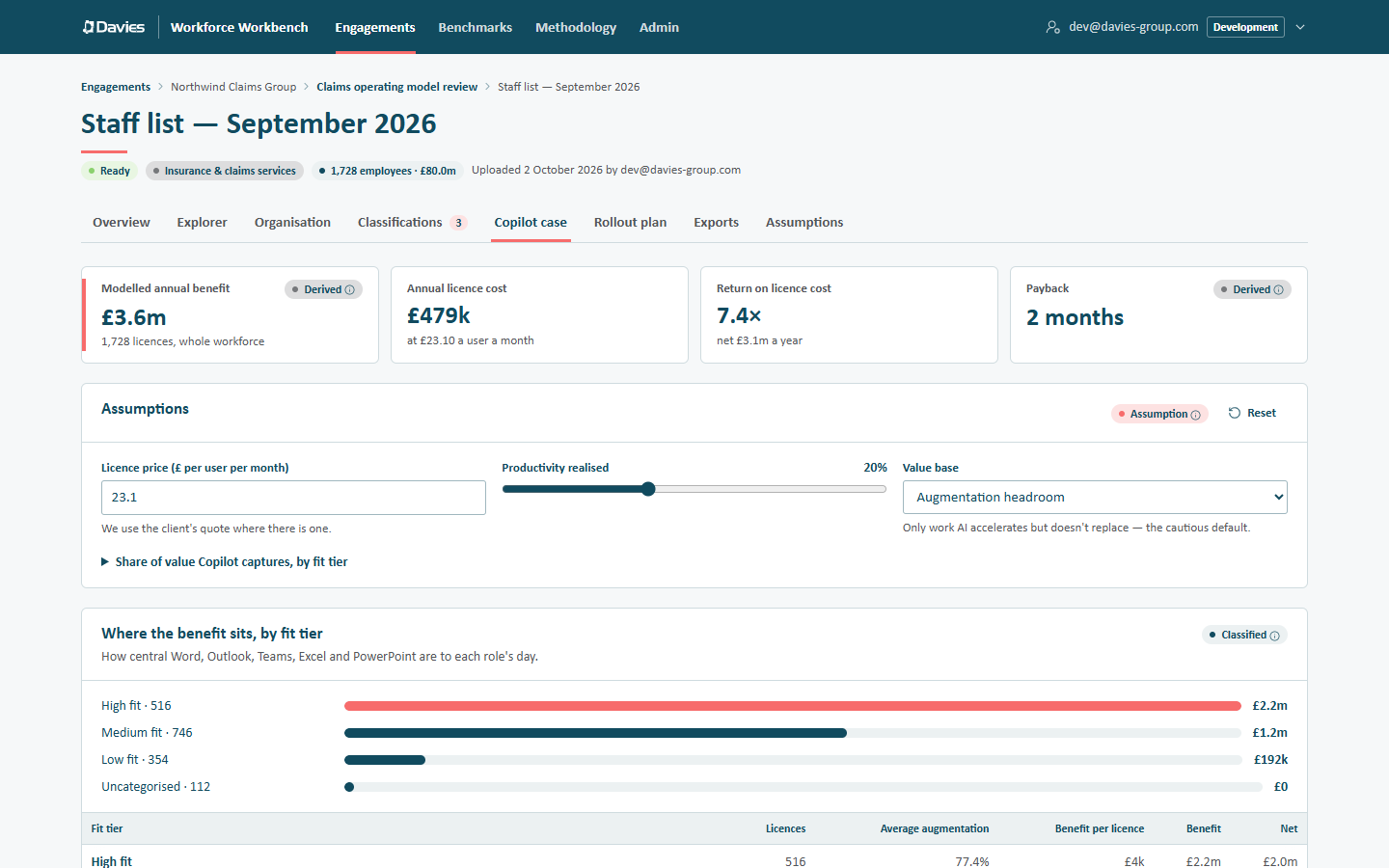
The Copilot case for the whole workforce, at the default licence price of £23.10 a user a month.
The assumptions here (licence price, productivity realised, value base and the share of value by fit tier) are a working model and aren't saved. A saved set of assumptions belongs to a rollout plan.
Now open the Rollout plan tab. The demo has a saved plan, Copilot pilot — claims teams: 563 new licences across two waves, split by Microsoft 365 tenant (Northwind and Northwind Legal), because licences are bought per tenant.
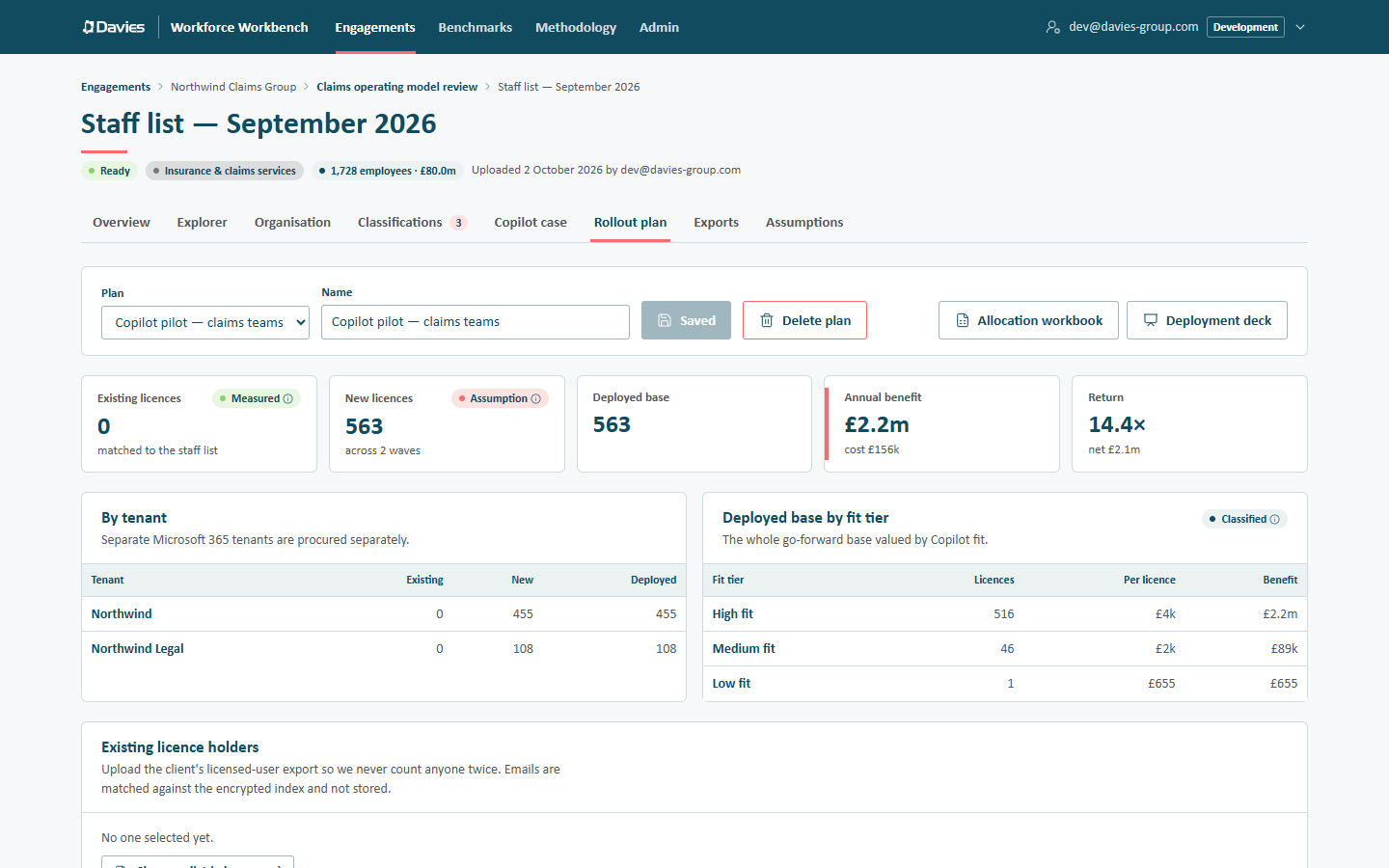
A saved rollout plan: waves of licences, counted per tenant and net of existing licence holders.
See Copilot business case and Plan a Copilot pilot.
6 · Export a report (2 minutes)
Open the Exports tab. Every deliverable is generated in the browser, in the Davies brand unless we choose the client's, and every export is recorded in the audit trail. None of them contains names or emails; the only named export is the Copilot allocation workbook on the Rollout plan tab.
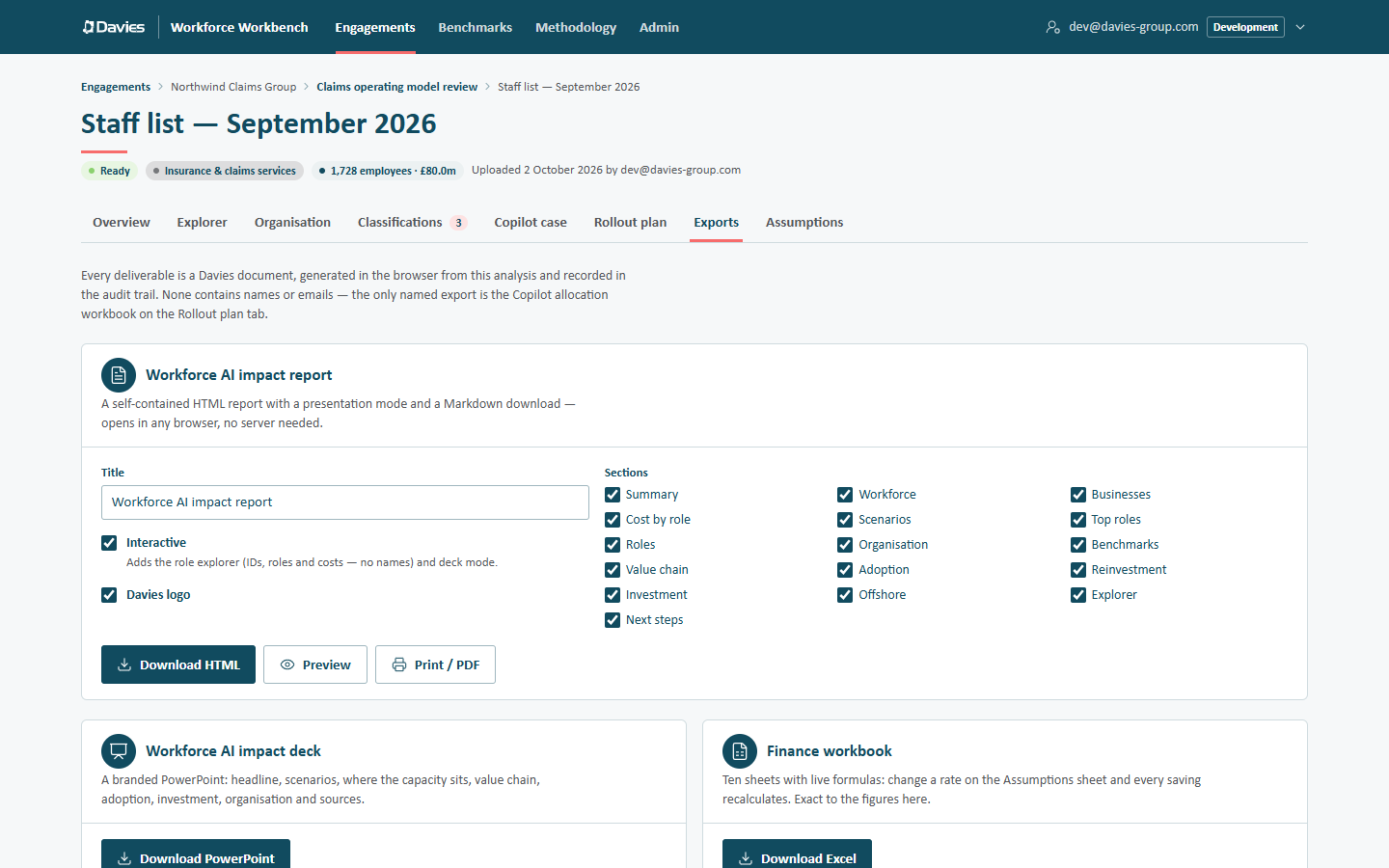
The Exports tab: the HTML report with its options, the PowerPoint deck and the finance workbook.
Under Workforce AI impact report, choose Preview. The report opens in a new tab. Its floating buttons offer Markdown, Present (a slide-by-slide presentation mode; Exit leaves it) and PDF. Back on the Exports tab, Download HTML saves the same report as one file that opens offline.
See Exports and Prepare a client pack.
7 · Compare with January (2 minutes)
Go back to the engagement (the breadcrumb at the top) and choose Compare. From staff list defaults to September and To staff list to January.
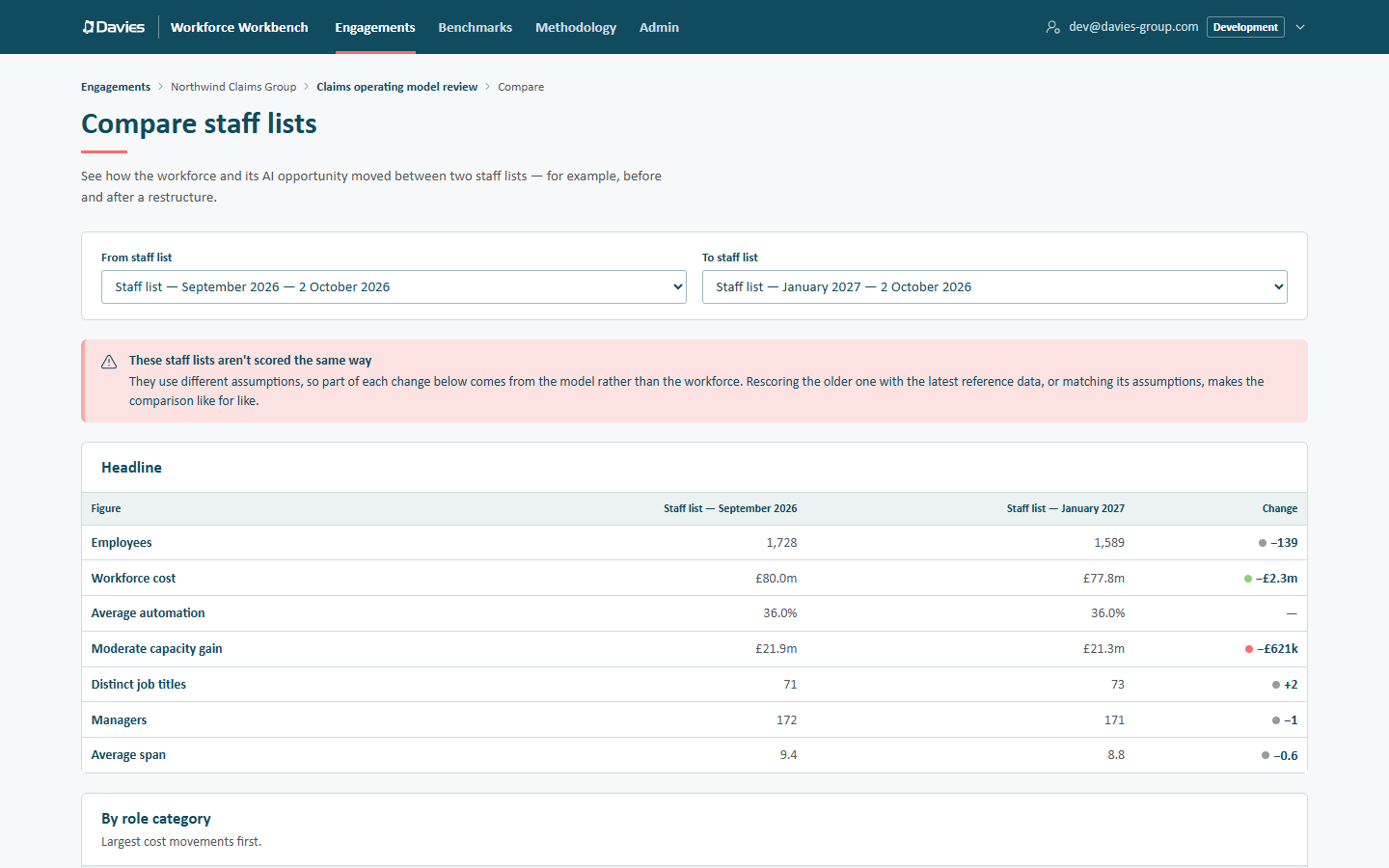
Comparing two staff lists. The warning appears because their assumptions differ.
The headline shows the workforce moving from 1,728 to 1,589 employees. Note the warning above it: These staff lists aren't scored the same way. The January list has a different employer-cost multiplier (step 4), so part of each change comes from the model rather than the workforce. Before quoting a movement to a client, we'd make the assumptions match, or rescore the older list onto the same reference data. See Compare staff lists.
Where to go next
A few more things worth a look in the demo:
- Harbour Facilities Group → Shared services baseline: its staff list was scored with reference data version 1, so it offers Rescore with version 2, and it has 16 titles waiting for review.
- Fenwick Bank → Risk and compliance capability review → Overrides: overrides set by standard occupation, each with its rationale.
- Engagements → Closed: the closed 2025 claims discovery and Harbour's purged 2025 pilot, which keeps only its anonymised summary.
- Sign in as Aisha Khan (viewer) or Tom Evans (analyst) to see what each role can and can't change.
- Methodology and Benchmarks in the top navigation.
Then:
| To… | Read |
|---|---|
| See what our role involves | Guides by role |
| Get a client's file ready | Preparing a staff list |
| Upload it | Uploading a staff list |
| Do a specific task | The How to pages, starting with Refresh with a new staff list |
| Understand where the numbers come from | Provenance and methodology |