Names, emails and personal data
Staff lists hold personal data. The Workbench is designed so that each person sees only the engagements they're staffed on, names and emails are handled as little as possible, and every access to them leaves a trace.
Only team members with PII access on the engagement can store, reveal or match names and emails. Another lead (or an administrator) grants it; nobody can grant it to themselves, administrators included. See Team and roles.
What's stored, and what isn't
| Data | Where it lives |
|---|---|
| Employee ID, job title, manager's employee ID, business, division, sub-division, department, location, country, tenant, base salary, FTE | Uploaded and stored as the staff list's rows. Never names or emails. |
| Extra groupings (up to five, such as an IFA firm) | Stored with each person's row, as categories. A column whose heading looks like personal data, an identifier or a person (such as a manager or adviser), whose values look like emails, or which has so many values it would identify people is refused in the browser, and again by the server, which also checks each grouping's variety when the upload completes. Never used in summaries, AI prompts, logs or benchmarks. |
| Manager emails | Resolved to manager employee IDs in the browser. Never uploaded. A manager named by email who isn't in the list is uploaded as an opaque numbered stand-in (unmatched-manager-1…), never the email. |
| Work emails used for tenants | Turned into tenant names in the browser. Never uploaded unless we store identities. |
| Names and work emails | Uploaded only when someone with PII access ticks Store names and emails, encrypted at upload. Encrypted with a key unique to the engagement. |
| Everything else in the file | Never leaves the browser: only mapped columns and ticked extra groupings are sent. |
Where two people share a manager email, reporting lines through that email are left unlinked rather than guessed.
When to store names and emails
Store them only if we'll need:
- named licence lists in the Copilot allocation workbook; or
- to match the client's licensed-user export (or a named cohort list) by email.
Everything else (the analysis, the organisation chart, the rollout plan and every other export) works on employee IDs alone. If the client's lists carry employee IDs, we don't need to store names at all.
Revealing names
With stored identities and PII access, three places can show names. Each reveal asks the server to decrypt names, and is audited with its purpose and the number of people.
| Where | Control | What's revealed | Purpose recorded |
|---|---|---|---|
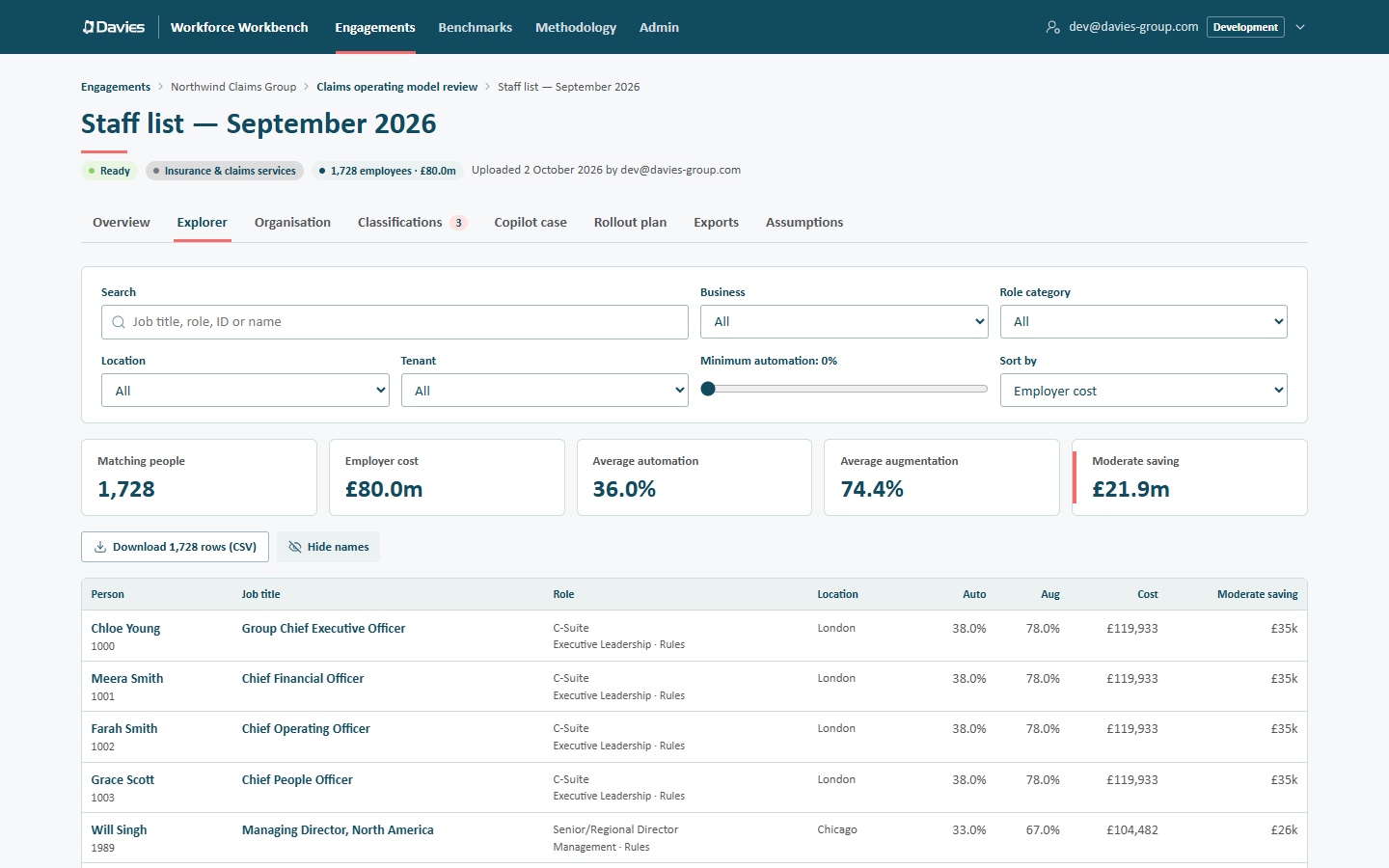
| Explorer | Show names (audited) / Hide names | Names for the rows currently shown | Explorer: view names for the rows shown |
| Organisation explorer | Show names (audited) | Every name in the staff list, for the reporting tree | Organisation chart: show names |
| Rollout plan export | Allocation workbook | Names and emails of the people receiving new licences only (existing holders stay listed by employee ID) | Copilot allocation workbook: followed by the plan name |
Once revealed, the Explorer search also matches names. Names stay in the browser tab only; leaving the page or choosing Hide names forgets them.
Matching a list of emails
On the Rollout plan tab, two places accept a client list (Excel or CSV):
- Existing licence holders, the client's licensed-user export, so people who already hold a Copilot licence are never counted again;
- a cohort rule of type Named list.
We choose the column with emails or employee IDs and choose Match N rows. If most values look like emails, they're matched against the encrypted blind index of stored emails (no names are decrypted), which needs stored identities and PII access. Otherwise the values are treated as employee IDs and matched in the browser. The result reads, for example, Matched 412 of 430 emails; 18 aren't in this staff list. Email matches are audited (Matched a people list); the emails themselves aren't stored.
What never contains names
- The staff list's rows and summary.
- Every export except the Copilot allocation workbook: the HTML reports (including the Spans and layers report), both PowerPoint decks, the finance workbook and the CSV extracts (including the manager list and the Savings by group table).
- AI prompts. The classifier sees distinct job titles with the client's sector and region; the executive summary, value-chain map and "Ask this workforce" see aggregate figures only.
- Logs and the audit trail's details.
The audit trail
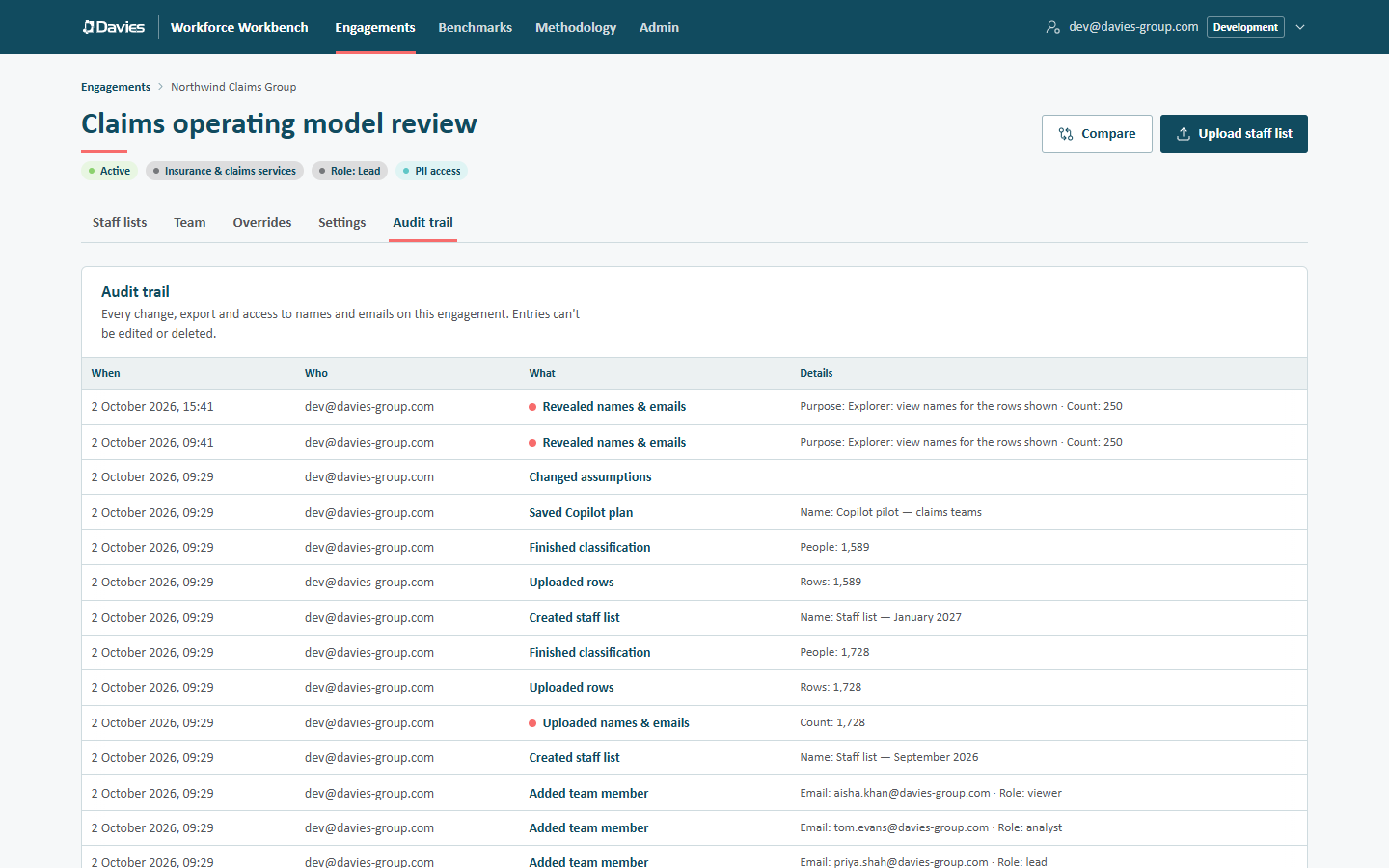
Personal-data actions are marked with a salmon dot in the audit trail (the key below the table reads names and emails used or destroyed): Uploaded names & emails, Revealed names & emails, Matched a people list and Purged personal data. Leads see their engagement's trail; administrators see everything. Entries can't be edited or deleted.
Retention and deletion
When an engagement is closed, its data is kept for its retention period and then purged. Purging destroys the engagement's encryption key in the live database, so stored names and emails can no longer be read there. Backups and point-in-time history taken before the purge still hold the wrapped key and the encrypted data until they age out, so they're only gone from those once the backup window has passed. See Closing, reopening and purging.