Introduction
Workforce Workbench is Davies' internal platform for workforce optimisation analyses. We upload a client's staff list and the Workbench models three things:
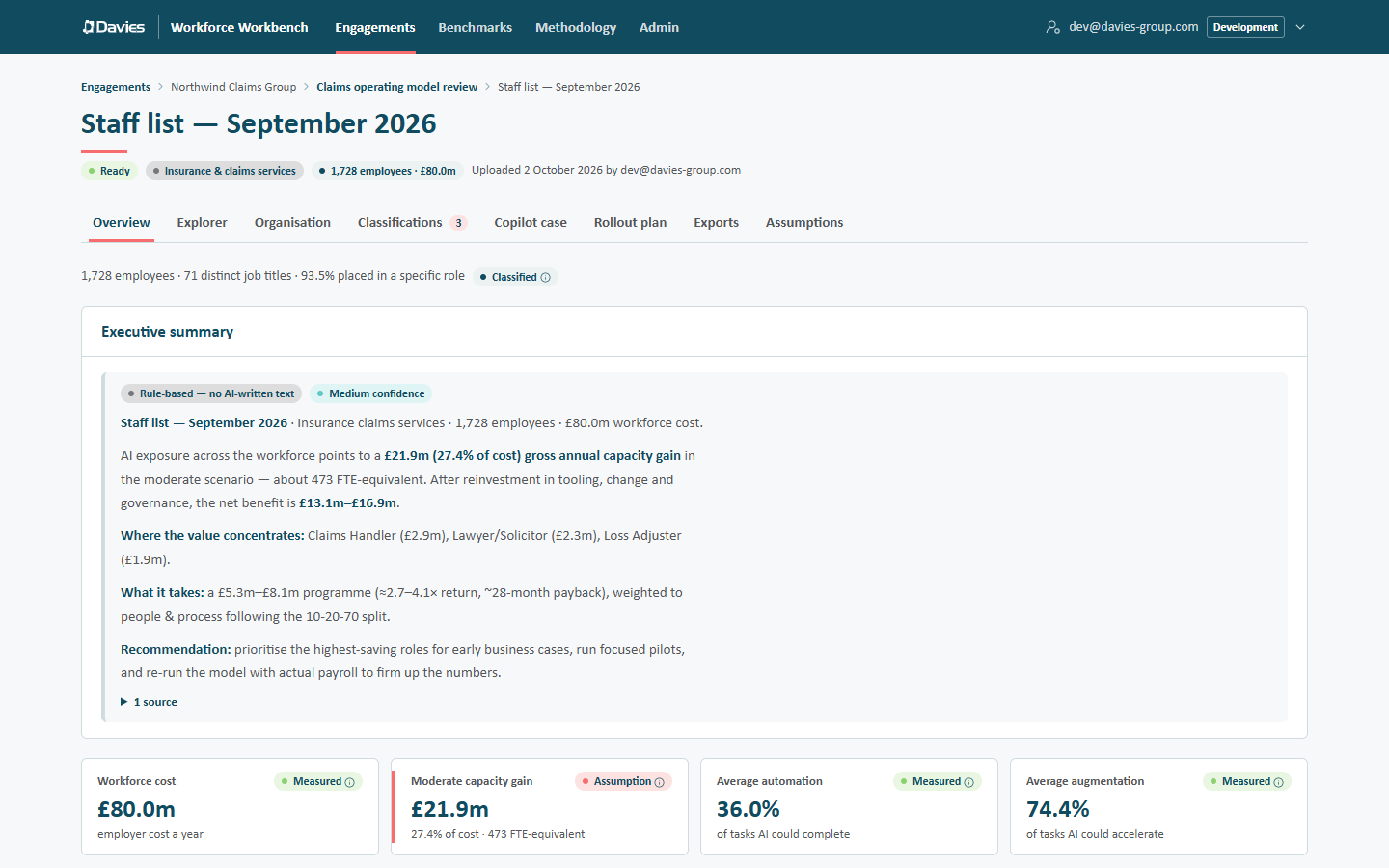
- AI impact on the workforce. Each distinct job title is classified to a standard occupation. The model then scores how much of each role AI could automate or augment, anchored to published research; costs the workforce from the client's salaries or national pay data; and sizes capacity-gain scenarios, an adoption S-curve, reinvestment and the investment case.
- Organisation design. From reporting lines, the Workbench builds the organisation chart and measures spans of control, layers and narrow spans, with an explorer that rolls cost and exposure up every reporting line.
- Microsoft 365 Copilot. It builds the business case by fit tier and plans licence rollouts wave by wave and tenant by tenant, never double-counting people who already hold a licence.
Every figure is either derived from a cited source or labelled as an assumption we can see and change. Deliverables are generated in the browser, Davies-branded or co-branded with the client: an HTML report with a presentation mode, PowerPoint decks, a live-formula Excel finance model, a per-tenant licence allocation workbook and CSV extracts.
The Workbench produces modelled estimates. Capacity gains are gross annual capacity, not cash savings and not a headcount target. We validate the figures with the client before anyone makes a decision on them.
Who it's for
| Who | What they do in the Workbench |
|---|---|
| Consultants (engagement leads, analysts, viewers) | Run engagements: upload staff lists, review classifications, explore the analysis, plan Copilot rollouts and export deliverables. |
| Administrators | Manage who can use the platform, the shared classification cache, the reference data every figure is built from, and the AI prompts. They see the platform-wide audit trail and AI spend. |
The Workbench is a single internal tool for one consultancy working for many clients. It isn't multi-tenant: the boundary that matters is which engagements we're staffed on, and whether we may see names and emails.
Roles at a glance
| Role | Scope | Can |
|---|---|---|
| Member | Any signed-in Davies colleague | Create clients and engagements; see engagements they're staffed on; use Methodology and Benchmarks. |
| Viewer | One engagement | Read the engagement's reports and export deliverables that contain no names. |
| Analyst | One engagement | Everything a viewer can, plus upload staff lists, override classifications, change assumptions and build rollout plans. |
| Lead | One engagement | Everything an analyst can, plus manage the team and settings, close, reopen or purge the engagement, and read its audit trail. |
| PII access | One engagement, any role | Store, reveal and match names and emails for that engagement. Granted by another lead or an administrator, never by ourselves. |
| Administrator | The platform | Everything above except access to names and emails, on every engagement, plus Admin. |
Access to names and emails is never implied, not even for administrators, and nobody can grant it to themselves. An administrator who needs names on an engagement must be given PII access on its team by another lead or administrator, like anyone else.
See Team and roles for the detail.
How an engagement runs
- Start an engagement for a client, choose its industry pack and retention period, and add the team. See Engagements.
- Upload a staff list (Excel or CSV). It's read in the browser; only the columns we map are sent. See Uploading a staff list.
- Review classifications. Check the low-confidence titles and override any that are wrong. See Classifications and overrides.
- Explore the analysis on the staff list's tabs: the report, the explorer, organisation, Copilot case and assumptions. See The report.
- Plan a Copilot rollout in waves and cohorts, per tenant. See Rollout plan.
- Produce deliverables from the Exports tab. See Exports.
- Compare and benchmark staff lists and engagements. See Compare staff lists and Benchmarks.
- Close the engagement when the work is done; personal data is purged after the retention period. See Closing an engagement.
Key ideas
Staff lists. Each upload is a staff list inside an engagement, with its own classifications, scores and assumptions. A refreshed list from the client is uploaded as a new staff list, which we can compare with the old one. (Some administrator screens and the developer guide call a staff list a dataset.)
Classification. We classify each distinct job title once, not each person. Sources are tried in a fixed order: a consultant's override, the industry pack's rules, the shared classification cache, the AI classifier, and finally the rule-based taxonomy.
Provenance. The badge beside a figure says where it comes from (Measured, Framework, Classified, Calibration, Derived or Assumption) and opens the full chain of sources. See Provenance and methodology.
Reference data. Every table and constant the model runs on (occupation catalogues, pay data, title rules, scenario rates, location factors, Copilot fit rules, industry packs) is versioned data that administrators publish. Each staff list is pinned to the version it was scored with, so its figures can always be reproduced. See Reference data.
AI is optional. The AI features (title classification, the executive summary, the value-chain map and "Ask this workforce") use Google Gemini when it's configured and the monthly budget allows. Choosing not to classify with AI at upload is remembered for that staff list. Without AI, everything still works on rules and the shared cache, and the screens say so.
Personal data is minimised. Names and emails are only uploaded when someone with PII access chooses to store them, encrypted. Manager emails are resolved to reporting lines in the browser and never leave it. See Names, emails and personal data.
Where to next
New to the Workbench? Start with A first look, in fifteen minutes, then Guides by role. What's new lists recent changes.