Share an engagement
Only people on an engagement's team can see it. Sharing an engagement means adding a colleague to its team with a role and, only if the work needs it, PII access to names and emails.
Who: the engagement's leads (and administrators).
1 · Choose the least access the work needs
| Give them | When they need to |
|---|---|
| Viewer | Read the analysis and export deliverables without names: a partner reviewing the work, a colleague presenting it. |
| Analyst | Also upload staff lists, correct classifications, save assumptions and build rollout plans. |
| Lead | Also manage the team and settings, read the audit trail, and close or purge the engagement. |
| PII access (with any role) | Store, reveal or match names and emails: named licence lists, or matching the client's licensed-user export by email. |
See Guides by role for the full table.
2 · Add them
Open the engagement's Team tab.
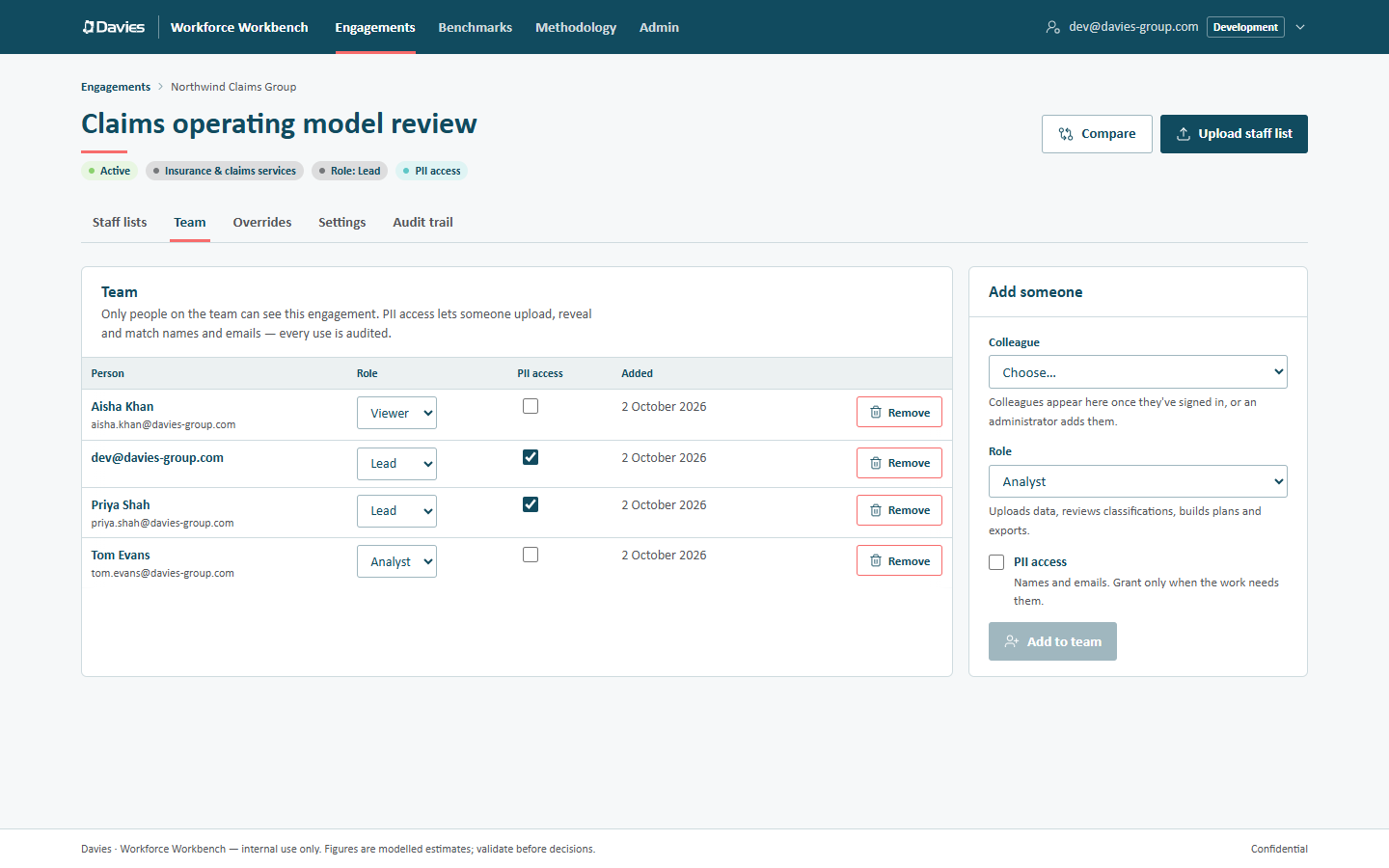
The team, and the Add someone card.
In Add someone:
- Colleague: choose them from the list.
- Role: the hint underneath says what the role can do.
- PII access: tick only if the work needs names and emails (Grant only when the work needs them).
- Choose Add to team.
The engagement then appears on their Engagements page. The audit trail records Added team member, with the role.
Colleague not in the list?
Colleagues appear here once they've signed in, or an administrator adds them. Either ask them to sign in once, or ask an administrator to add them on Admin → Users (Add someone: Email, Name, Role, then Add user). Deactivated colleagues don't appear.
3 · Change or remove access
Leads see controls on every row of the team table:
- change the Role from the drop-down;
- tick or clear PII access;
- Remove someone from the team (on our own row, it removes us).
Each change takes effect at once and is audited (Changed team member, Removed team member). An engagement always keeps at least one lead, so make someone else lead before demoting or removing the last one.
Rules worth knowing
- Nobody grants themselves access to names and emails, administrators included. On our own row, the PII access box can be cleared but not ticked: another lead or an administrator has to grant it. The one exception is the person who creates the engagement, who becomes its first lead with PII access.
- Administrators don't get names automatically. An administrator can act on any engagement as its lead (shown as Admin view), but sees names only if they're on the team with PII access.
- Remove people when they roll off the work, rather than leaving their access in place until the engagement closes.
- Leavers lose access everywhere at once when an administrator deactivates them on Admin → Users. Their audit history stays.
See Team and roles for more.