Respond to a deletion request
A client may ask for their staff data to be deleted at the end of the work, or sooner. The Workbench purges an engagement's personal data automatically once it has been closed for its retention period; this page covers doing it now, and what remains afterwards.
Who: a lead on the engagement (or an administrator). Deleting a single staff list is open to leads and analysts.
The whole engagement: purge now
- Open the engagement's Settings tab.
- Under Lifecycle, choose Close engagement and confirm. The engagement becomes read-only for everyone. (An active engagement can't be purged.)
- Under Lifecycle again, choose Purge personal data now.
- Type the engagement's exact name in the confirmation box and choose Purge now.
Names, emails, employee rows and Copilot plans are destroyed and the engagement's encryption key is shredded. This can't be undone. Every staff list becomes Summary only, and the audit trail records Purged personal data.
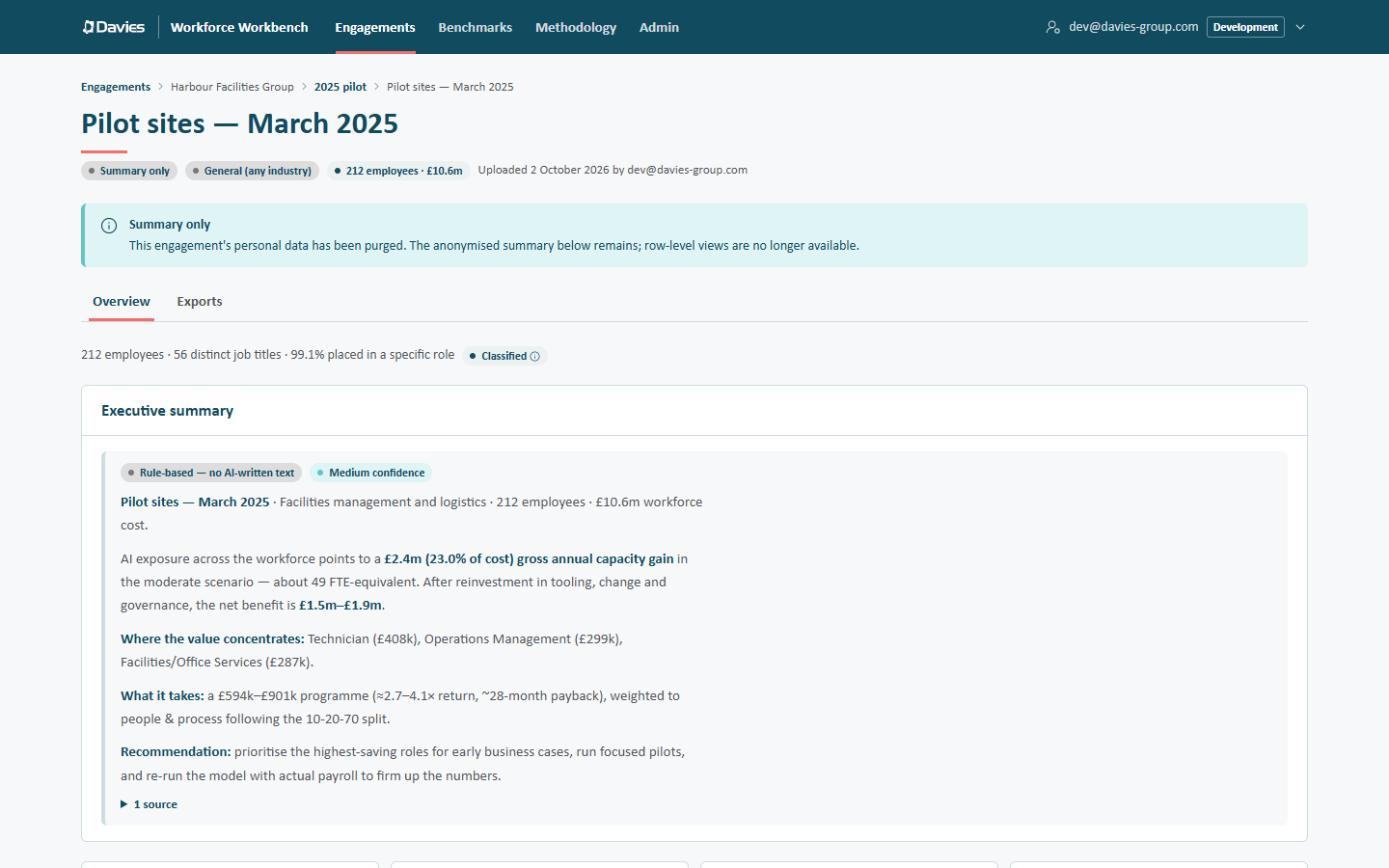
After a purge, a staff list keeps only its anonymised summary.
What's destroyed, and what remains
| Destroyed by the purge | Remains |
|---|---|
| Stored names and emails, and the engagement's encryption key | Each staff list's anonymised summary: the Overview, the exports that don't need rows, comparisons and its benchmark contribution |
| Employee rows (IDs, titles, reporting lines, locations, salaries) | Classification overrides: job titles, occupation codes and rationales |
| Job-title lists and upload records | The audit trail, whose details never contain names or emails |
| Copilot rollout plans (they list employee IDs) | Entries in the shared classification cache: job titles and codes only, when the engagement shares classifications |
If the client wants even the anonymised summaries gone, an administrator can delete the engagement outright: Settings → Delete engagement, type the name, Delete permanently. The audit trail keeps a record of the deletion.
Purging destroys the encryption key and the rows in the live database. Database backups and point-in-time history taken before the purge still hold the data until they age out. Say so when confirming the deletion to the client. Our operations guidance is to keep that window short.
One person, or one staff list
There's no way to delete a single person from a staff list. When a request concerns particular people (a leaver whose details shouldn't be held, say), or one upload that should never have included names:
- On the engagement's Staff lists tab, choose Delete beside the staff list and confirm with Delete staff list. This removes the staff list, its rows, stored names and emails, and its Copilot plans.
- If the analysis is still needed, upload a corrected file without those people (or without names), as a new staff list. Overrides carry over automatically; assumptions and rollout plans have to be set again. See Refresh with a new staff list.
The audit trail records Deleted staff list.
Outside the Workbench
The Workbench can only delete what it holds. Files we've already downloaded are outside it: reports, decks, workbooks, CSV extracts and, above all, any allocation workbook that named people. To find them:
- the engagement's Audit trail lists every Exported entry, with who produced it and when;
- reveals of names are listed as Revealed names & emails.
Ask each person concerned to delete their copies, and the client to delete copies we sent them if the request covers those too.
Confirming the deletion
Leads can read the engagement's Audit trail to confirm what was done and when (Purged personal data, with the reason manual, or Deleted staff list), which is the record to quote in the reply. See Closing an engagement and Names, emails and personal data.