Prepare a client pack
A typical pack is the workforce AI impact report (HTML, or a PDF of it), the PowerPoint deck, the finance workbook for the client's finance team, the Spans and layers report if organisation design is in scope and, if Copilot is in scope, the Copilot business case and deployment deck. Every deliverable is generated in the browser from the staff list's figures, in the Davies brand or co-branded with the client (choose under Brand on the Exports tab), and recorded in the audit trail.
Who: anyone on the engagement can export, viewers included. Only the Copilot allocation workbook can contain names, and only for someone with PII access.
Before exporting: check the figures
- Classifications. The Classifications tab has no titles waiting for review, or we've agreed with the lead to leave the remainder. Every override has a rationale; rationales appear in exports.
- Assumptions. The Assumptions tab holds the values agreed with the client, saved with Save and rescore. Salmon Assumption badges on the report mark every figure that rests on a judgement.
- Reference data. If the staff list offers Rescore with version N, decide whether to rescore first. The pack's methodology section describes the version the staff list uses.
- Executive summary. If it's AI-written, read it. Review before sharing means the AI had low confidence. After a rescore it reverts to the rule-based text until someone chooses Write with AI again.
- Copilot. If the pack includes the Copilot case, use the client's quoted licence price where there is one, and save the assumptions in a rollout plan (the Copilot case tab doesn't save them).
- The wording. Capacity figures are gross annual capacity, not cash savings and not a headcount target. If the client uses its own terms or wants its own points made, the lead adds them under Report wording on the engagement's Settings tab before we export: section paragraphs, the value-concentration point and word swaps (see Your own wording). They apply to the HTML report, its Markdown and the deck, not to the workbook or the Spans and layers report.
- Groupings. If the client wants savings by its own groupings (an IFA firm, say), check they were ticked as Extra groupings at upload, and that Savings by group adds up to the report.
- Reporting lines. If the pack includes the Spans and layers report, read its Data quality section first: many disconnected managers mean the layers are understated.
Produce the deliverables
All on the staff list's Exports tab unless noted.
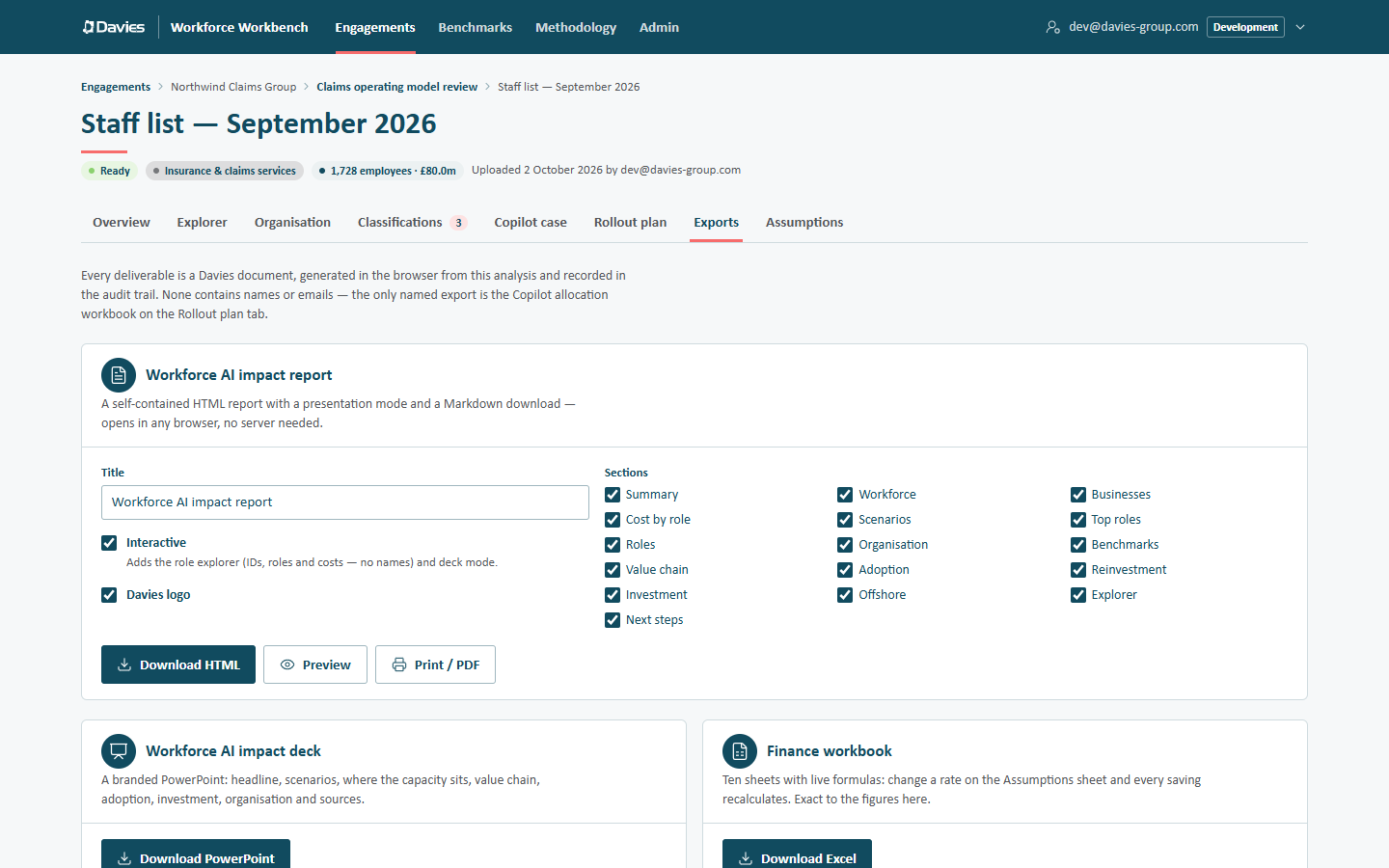
The Exports tab.
| Deliverable | How | Notes |
|---|---|---|
| Workforce AI impact report (HTML) | Set the Title, tick the Sections, choose Interactive and Davies logo, then Download HTML. Preview opens it in a new tab; Print / PDF prints it or saves a PDF. | One self-contained file that opens offline. Inside it, Markdown, Present and PDF buttons give a text copy, a presentation mode and printing. |
| Spans and layers report (HTML) | Set the Title, choose Interactive, then Download spans report (HTML). Preview spans report and Print spans report / PDF work as for the main report; Download manager list (CSV) saves every manager. | Spans, layers, groupings, the cost of managers and every manager by ID and job title, with how far disconnected managers could move the figures. |
| Workforce AI impact deck (PowerPoint) | Download PowerPoint. | Headline, scenarios, where the capacity sits, value chain, adoption, investment, organisation and sources, plus a slide for each section paragraph the lead added. |
| Finance workbook (Excel) | Download Excel. | Ten sheets with live formulas, plus one per division, department and extra grouping the staff list has: the client can change a rate on the Assumptions sheet and every saving recalculates. Exact to the figures on screen. |
| Copilot business case (HTML) | Choose a saved plan under Include a rollout plan (or No plan — default assumptions), then Download HTML. | With a plan, it uses the plan's saved Copilot assumptions and adds its waves by tenant. |
| Summary CSV | Summary CSV under Data extracts. | Rollups and scenarios. Row-level extracts are on the Explorer tab. |
| Savings by group (CSV) | Savings by group tab → Download table (CSV). | People, cost, saving, saving as a share of cost and FTE saved for the grouping shown. |
| Deployment deck (PowerPoint) | Rollout plan tab → Deployment deck. | The plan's waves, tenants, fit tiers, cost and return. No names. |
| Allocation workbook (Excel) | Rollout plan tab → Allocation workbook. | One sheet per tenant listing each new licence. See below. |
See Exports for the contents of each.
Names: never, unless…
No deliverable contains names or emails, with one exception: the Copilot allocation workbook. When the staff list has stored names and emails and we have PII access, the workbook names the people receiving new licences (only those are revealed), and that reveal is recorded in the audit trail with its purpose and the plan's name. Without both, its lists are by employee ID only.
So before sending the allocation workbook, decide whether the client's deployment team needs names at all; their own systems can usually work from employee IDs.
Several deliverables carry employee IDs with each person's role and cost: the interactive explorer inside the HTML report (IDs, roles and costs — no names), the finance workbook's Raw Data sheet, the Copilot business case's role explorer, the Explorer's row-level CSV, and the Spans and layers report's manager list and its CSV (managers by ID, job title and cost). The client can link those IDs back to people. For a wide audience, untick Interactive on the report and send the PowerPoint deck rather than the workbook.
Before sending
- Open each file once more: the right client, staff list and date in the title.
- Check the methodology and sources section at the end of the report and workbook; it's generated from the same provenance as the badges in the app.
- Send HTML reports as attachments to be opened in a browser. Teams and Outlook preview HTML without scripts; the report notices and asks the reader to download it, so the interactive parts work.
- Use an approved, secure route for anything carrying employee IDs and costs, and for the allocation workbook above all.
- Leads: the engagement's Audit trail lists every Exported entry, so we can see what has gone out and who produced it.
After a change
Deliverables are snapshots. If an override, an assumption or the reference data changes after we've exported, export again; the old files don't update themselves.