Plan a Copilot pilot
A Microsoft 365 Copilot pilot usually starts with a question ("if we buy 500 licences, who gets them, and is it worth it?") and ends with a list per tenant of who gets a licence in which wave. In the Workbench that's two tabs on the staff list: Copilot case for the case, and Rollout plan for the waves.
Who: leads and analysts save plans. Anyone on the engagement can open and export them.
1 · Test the business case
Open the staff list's Copilot case tab.
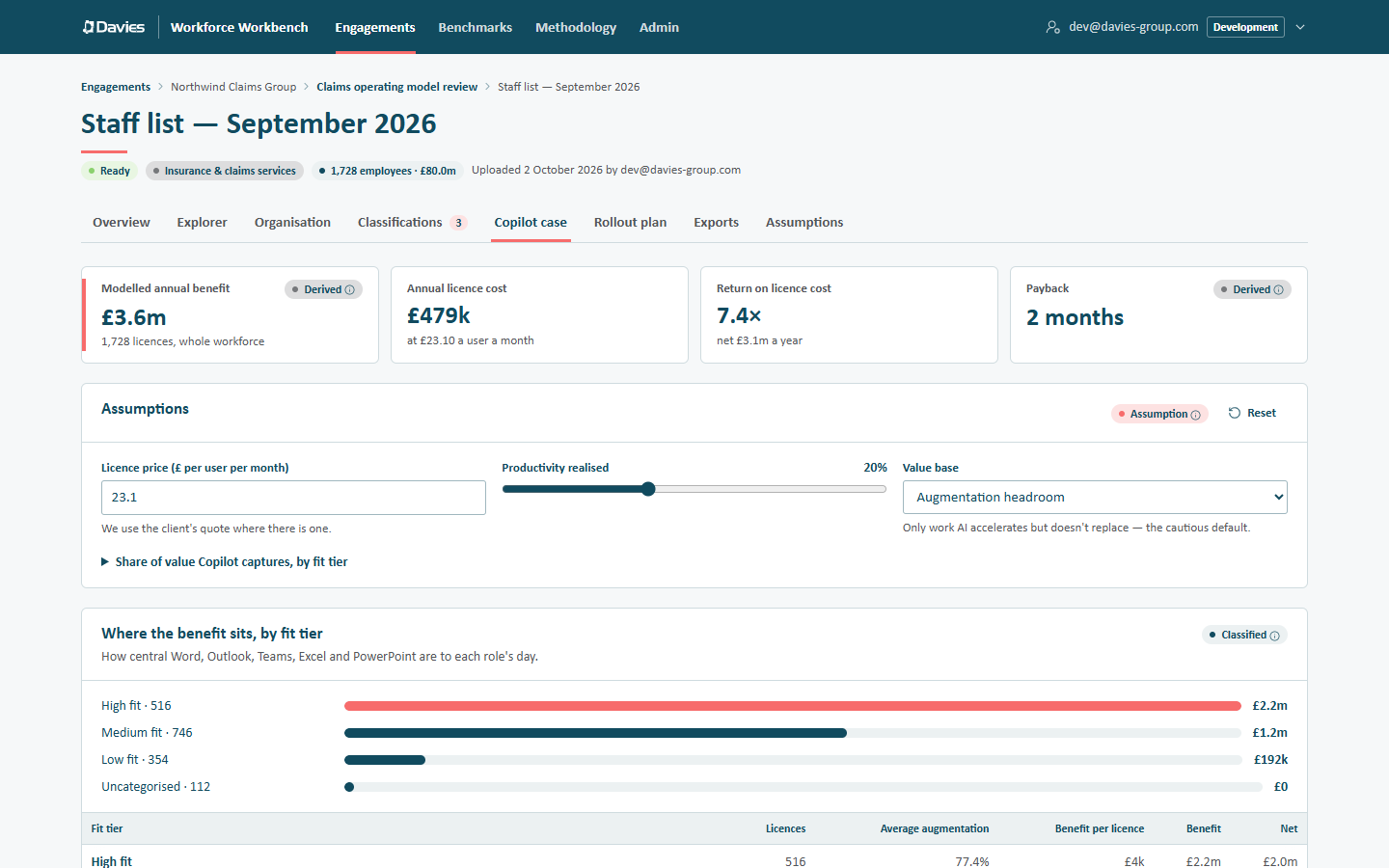
The case for the whole workforce, by fit tier.
Set the Assumptions to what we know about this client:
- Licence price (£ per user per month): the client's quote where there is one (We use the client's quote where there is one); otherwise the reference data default.
- Productivity realised: the share of the value base that becomes realisable value.
- Value base: Augmentation headroom (the cautious default) or Full augmentation.
- Share of value Copilot captures, by fit tier: for high, medium and low fit.
Read Where the benefit sits, by fit tier, and use Licence budget to see where a fixed number of licences would land first (the roles with the highest benefit per licence).
These settings aren't saved. The plan in the next step keeps its own. See Copilot business case.
2 · Start a plan
Open the Rollout plan tab and choose + New plan under Plan. A new plan starts from a template:
- with reporting lines: Wave 1 — leadership (the top three levels of the reporting tree) and Wave 2 — high-fit roles, capped at 500 licences;
- without reporting lines: just Wave 1 — high-fit roles, capped at 500, and a notice, This staff list has no reporting lines, because leadership and reporting-line selections can't find anyone on a flat list.
Give it a Name, then set the plan's own Assumptions (as in step 1). They're saved with the plan, so its figures can be reproduced.
3 · Take out existing licence holders
If the client already has Copilot licences, upload their licensed-user export under Existing licence holders:
- Choose the list (Excel or CSV).
- Pick the Column with emails or employee IDs.
- Choose Match N rows.
Matching by email needs stored names and emails on this staff list and PII access; the emails are matched against the encrypted index and not stored. Otherwise use an employee ID column. People who already hold a licence are never given a new one, but they count in the deployed base.
4 · Shape the waves
Each wave is made of cohorts. A cohort includes anyone matching one of its rules and leaves out anyone matching an exclusion:
| Rule | Selects |
|---|---|
| Leadership levels | Everyone in the top N levels of the reporting tree. |
| Reporting line | Everyone reporting into chosen leaders (Find a leader by title, ID or name). |
| Attribute | Rows whose business, division, country, tenant, role and so on is one of the chosen values. |
| Copilot fit tier | Roles by how Office-centric they are: high, medium or low fit. |
| All managers | Anyone with direct reports. |
| Named list | An uploaded list of emails or employee IDs. |
- Add another way to qualify widens a cohort; Add exclusion narrows it.
- Add cohort adds a cohort to a wave; Add wave adds a wave; Remove wave removes one.
- Cap this wave at limits a wave's licences, taking the people with the highest modelled benefit first. Leave it empty for no cap.
Waves are worked through in order, and nobody is licensed twice: someone already covered by an earlier wave, or holding a licence already, isn't counted again.
Wave 1: Leadership levels 3, so sponsors use it first. Wave 2: Copilot fit tier high, capped at the pilot budget. Wave 3: Attribute business is the pilot business, except Copilot fit tier low.
5 · Check the result by tenant
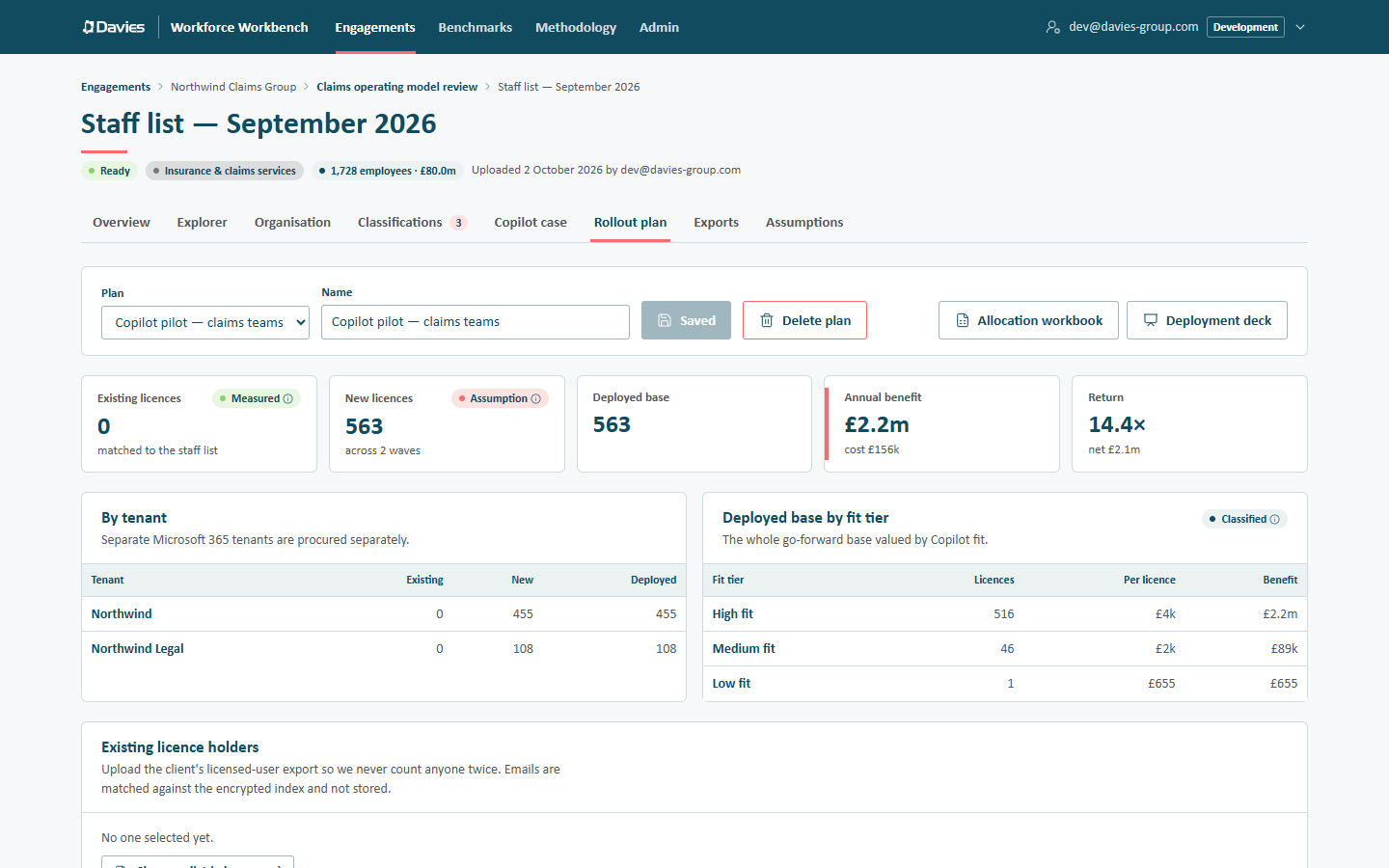
A saved plan: 563 new licences across two waves, split by tenant.
The tiles show Existing licences, New licences, Deployed base, Annual benefit and Return. By tenant splits the licences per Microsoft 365 tenant, because separate Microsoft 365 tenants are procured separately. Tenants come from the tenant column, or from email domains named at upload; people without one appear as Unassigned.
6 · Save and export
Choose Save plan (afterwards Save changes; it reads Saved when nothing has changed). Then:
- Allocation workbook (Excel): a summary, then a sheet per tenant listing each new licence by employee ID, with the wave and the cohort that selected the person, and the existing licences. With stored names and PII access, the people receiving new licences are named; that reveal is audited.
- Deployment deck (PowerPoint): the waves, tenants, fit tiers, cost and return for the client's deployment team. No names.
- On the Exports tab, the Copilot business case report can include the saved plan (Include a rollout plan).
See Rollout plan for every control, and Prepare a client pack before sending anything.
A plan is saved with the staff list it was built on. When the client sends a refreshed staff list, build the plan again on the new list and match the latest licensed-user export. See Refresh with a new staff list.