Change an AI prompt
The four AI prompts (the Title classifier, Executive summary, Value-chain mapper and Ask the data) are versioned data, edited on Admin → Prompt Lab. A change follows the same path every time: draft → preview → test against the live version → publish.
Who: administrators.
A prompt changes what the model is asked, never what the platform accepts. Every response is still checked against a fixed contract (shown under What the response must look like), so a poor prompt falls back to the rule-based behaviour rather than producing unchecked output. A prompt's variables carry the same data as before, so editing a prompt can't make it send names or row-level data.
1 · Start a draft
Choose the prompt on the left, read its purpose, Variables and What the response must look like, then choose Start a draft. The draft copies the live version, which keeps running until the draft is published.
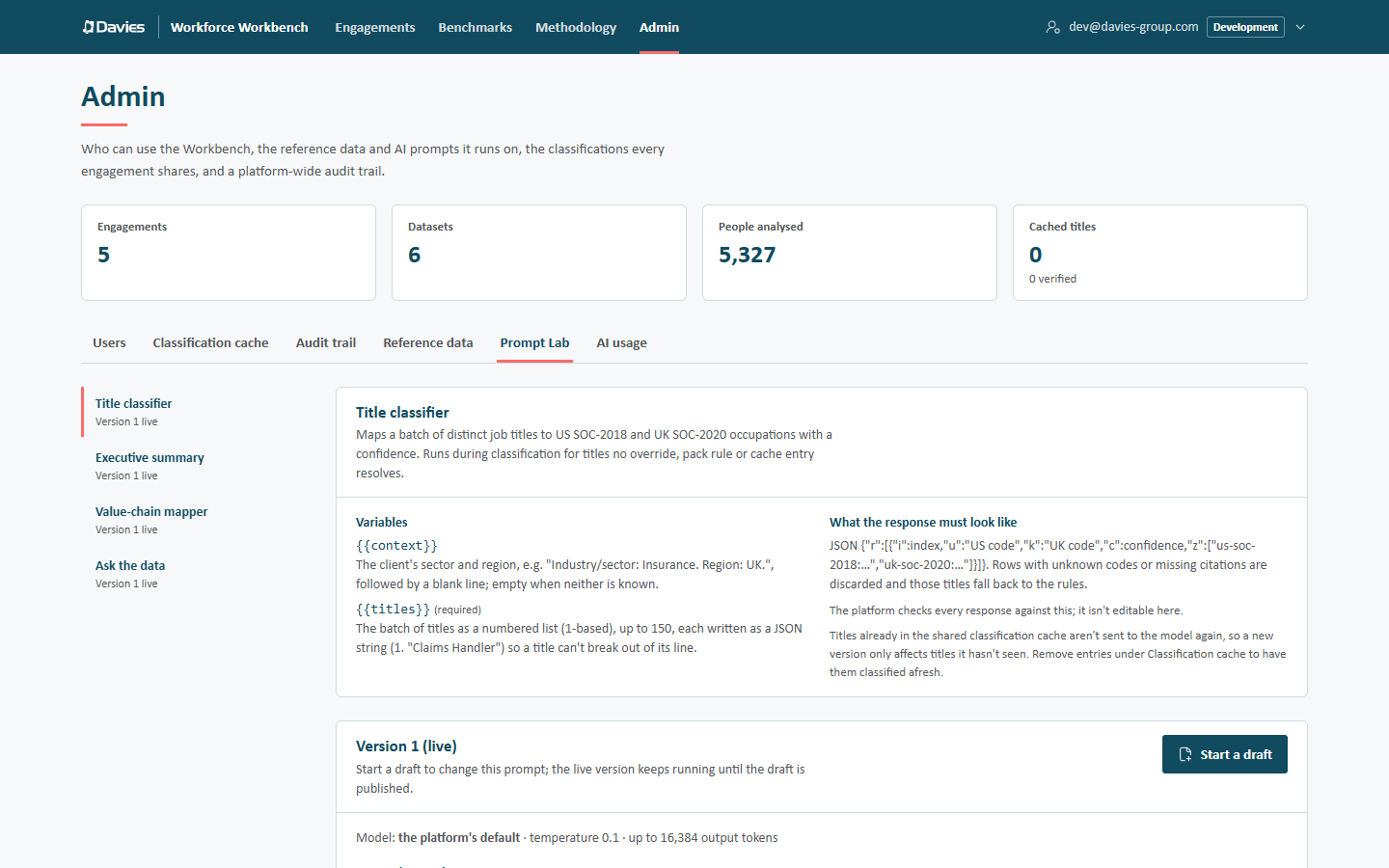
The Prompt Lab: each prompt's variables and response contract, and its live version.
2 · Edit
Change the System instructions, the Message template, or the settings (Model, Temperature, Maximum output tokens), and say in Notes what the draft changes and why.
- Variables are written
{{name}}; only the prompt's own variables are allowed, and each required variable must appear somewhere. - The draft is checked as we type. This draft can't be published yet lists anything to fix, and Publish and Run test wait until it passes.
- Save draft as we go. If a colleague saves the same draft meanwhile, the page asks whose version to keep.
3 · Preview
In the Test card, choose the input:
- for the Title classifier: Job titles, one per line (up to 50), with Industry and Region;
- for the others: a ready Dataset (and, for Ask the data, a Question). The prompt gets that staff list's anonymised aggregates, exactly as in production.
Choose Preview prompt. This renders the prompt with real variables without calling the model, so it's free and works without AI. Read the Rendered prompt to check the variables landed where intended.
4 · Test against the live version
Tick Compare with the live version and choose Run test. The draft and the live version run on the same input, side by side. For each we see:
- The platform would accept this or The platform would reject this, with a summary such as how many titles would be classified and how many fall back to the rules;
- the parsed output, the Rendered prompt and the Raw response;
- the model, time taken, tokens and estimated cost.
Test runs call the model, so they count against the monthly AI budget and are recorded in the audit trail (Tested a prompt). If AI isn't configured or the budget is spent, the test returns a preview headed The model wasn't called, with the reason.
For the classifier, paste 30 to 50 real titles from a recent engagement, including the awkward ones. For the narrative prompts, test on two or three staff lists of different shapes. Publish only when the draft is accepted at least as often as the live version, and reads better.
5 · Publish
Choose Publish, fill in What changed, and why, and confirm. Every AI call of this kind uses the published version from the next request onwards. Publishing is audited (Published a prompt).
Afterwards:
- AI text already generated (executive summaries, value-chain maps) stays until someone regenerates it or the staff list is rescored.
- Titles already in the shared classification cache aren't sent to the model again, so a new classifier prompt only affects titles it hasn't seen. To have particular titles classified afresh, remove their entries on Admin → Classification cache.
Rolling back
Every version is kept. To go back, open the prompt's Version history, choose Draft from this on the earlier version, and publish it as a new version. Discard throws away a draft without affecting the live version.
See Prompt Lab for every control and each prompt's variables.