Explorer
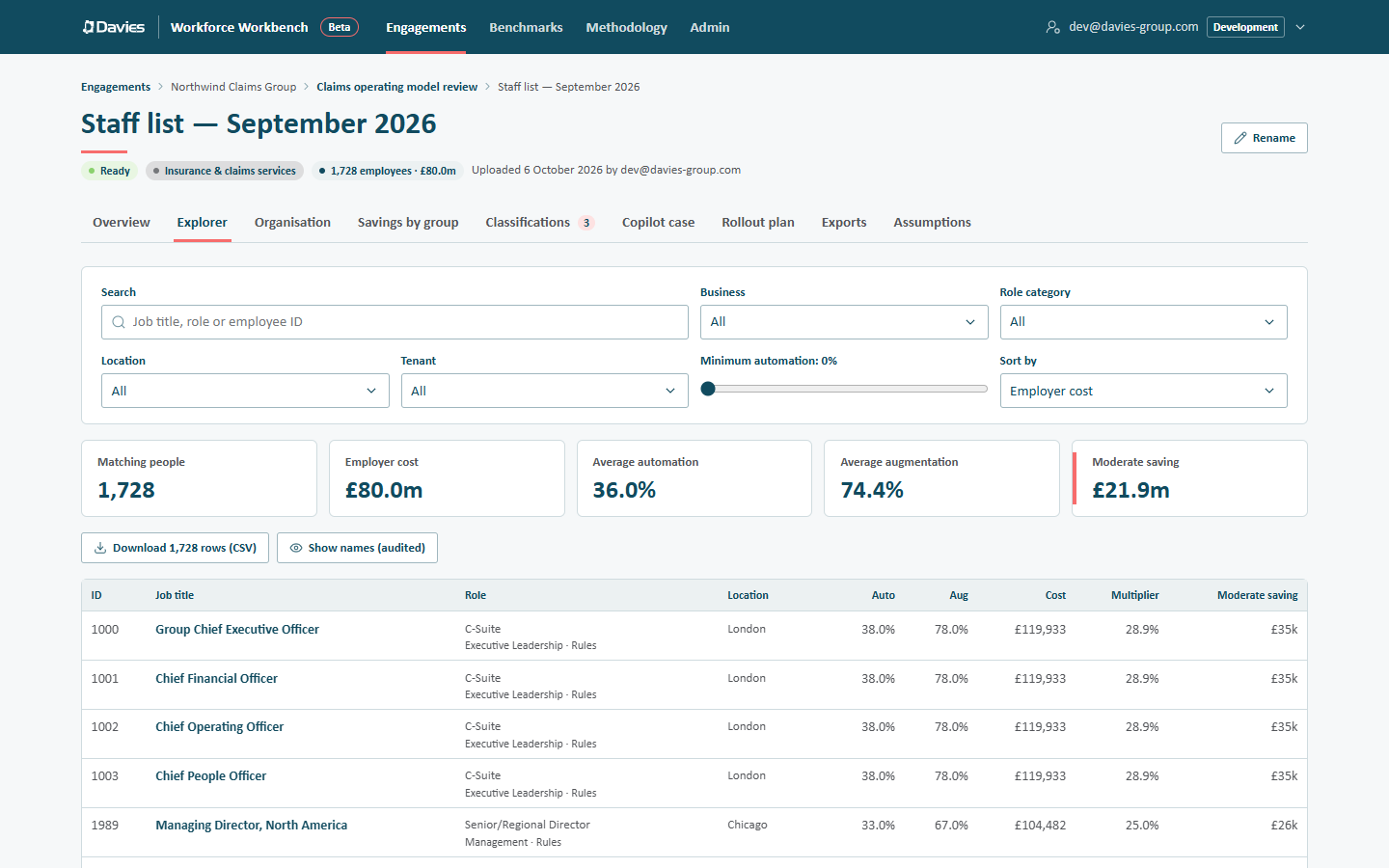
The Explorer tab lists every person in the staff list, by employee ID and role, never by name unless we choose to reveal names. It rescores the rows in the browser with the staff list's saved assumptions and reference data version, so its figures match the report exactly.
While it loads, a progress bar reads Loading the workforce.
Filters
| Control | What it does |
|---|---|
| Search | Matches the job title, the role, or an exact employee ID (and names, once revealed). Its placeholder reads Job title, role or employee ID. |
| Business, Department, Role category, Location | Pick one value, or All. Department is shown when the staff list has departments. |
| Tenant | Shown when the staff list has Microsoft 365 tenants. |
| Minimum automation | A slider from 0% to 60% in 5% steps (its label shows the value, for example Minimum automation: 0%): only people whose automation potential is at least this. |
| Sort by | Employer cost, Moderate saving, Automation, Augmentation or Job title. |
The tiles under the filters total the matching people: Matching people, Employer cost, Average automation, Average augmentation and Moderate saving.
The table
Each row shows the person's ID (or Person, with name and ID, once names are revealed), Job title, Role (with its category and how it was classified), Location, automation (Auto), augmentation (Aug), employer Cost, Multiplier (their moderate saving as a share of their own cost) and Moderate saving (their moderate-scenario capacity gain).
The first 250 rows are shown; Show more (N remaining) adds another 1,000.
Downloading rows
Download N rows (CSV) saves the rows that match the current filters (all of them, not just those loaded on screen), with these columns:
Employee ID, Job title, Business, Division, Sub-division, Department, any extra groupings (for example IFA Firm), Location, Country, Tenant, Role category, Role, Classification, US SOC, UK SOC, Copilot fit, Automation %, Augmentation %, Employer cost, Savings as a cost multiplier (moderate), Moderate saving, FTE, FTE saved (moderate).
A grouping whose heading matches one of these columns (a grouping called Location, say) is headed Location (grouping), so no two columns share a heading.
The multiplier is the saving as a share of the person's own cost, so a person's saving is their employer cost × their multiplier and FTE saved is their multiplier × their FTE. Summed over everyone, the savings match the report's moderate figure. FTE saved follows headcount rather than cost, so its total is close to the report's FTE-equivalent but not the same. To group them for a heat map without a spreadsheet, use Savings by group.
The CSV never contains names. Cells a spreadsheet would treat as a formula are neutralised, so a hostile job title can't run as a formula. The download is recorded in the audit trail.
Revealing names
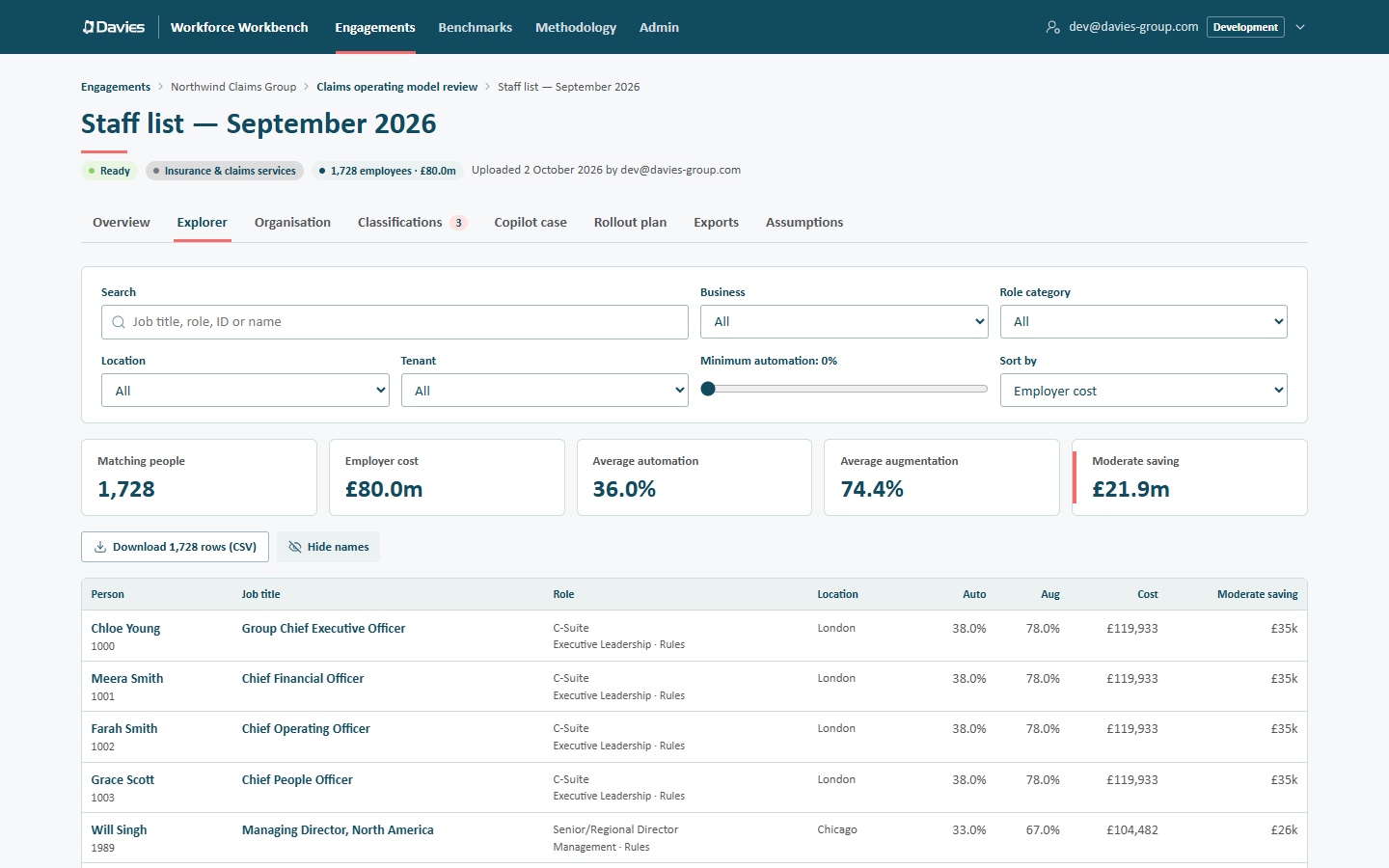
If the staff list has stored names and emails and we have PII access, Show names (audited) decrypts the names for the rows currently shown and adds them to the table and the search. Hide names forgets them. Each reveal is recorded with its purpose and the number of people. See Names, emails and personal data.
Tips
- Filter to a business, sort by Moderate saving and download: a quick shortlist of the roles where AI capacity concentrates.
- Use Minimum automation with a Role category to find pilot populations.
- To change a role's classification, use the Classifications tab; the Explorer is read-only.