Engagements and clients
An engagement is one piece of client work. It holds the client's staff lists, their classifications and overrides, Copilot rollout plans, the team and the audit trail. Access is by engagement: we only see engagements we're staffed on (administrators see all of them).
The Engagements page
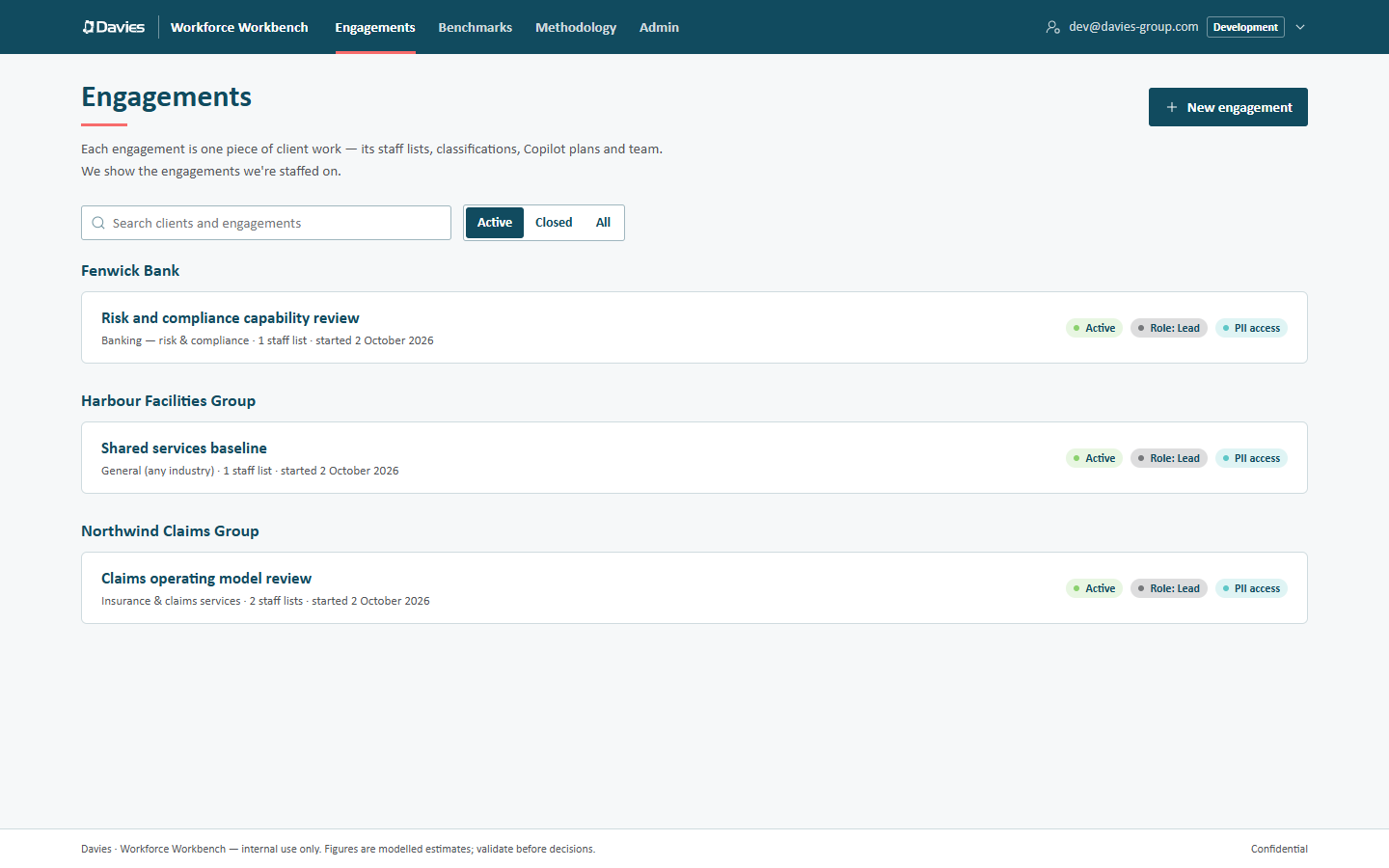
Engagements in the top bar lists every engagement we can see, grouped by client. Each row shows the engagement name, its industry pack, the number of staff lists and the start date, with pills for the engagement's status, our role (for example Role: Lead, or Admin view for an administrator who isn't on the team) and PII access.
- Search clients and engagements filters by client or engagement name.
- The Active / Closed / All switch filters by status. Closed includes engagements whose personal data has been purged.
Creating an engagement
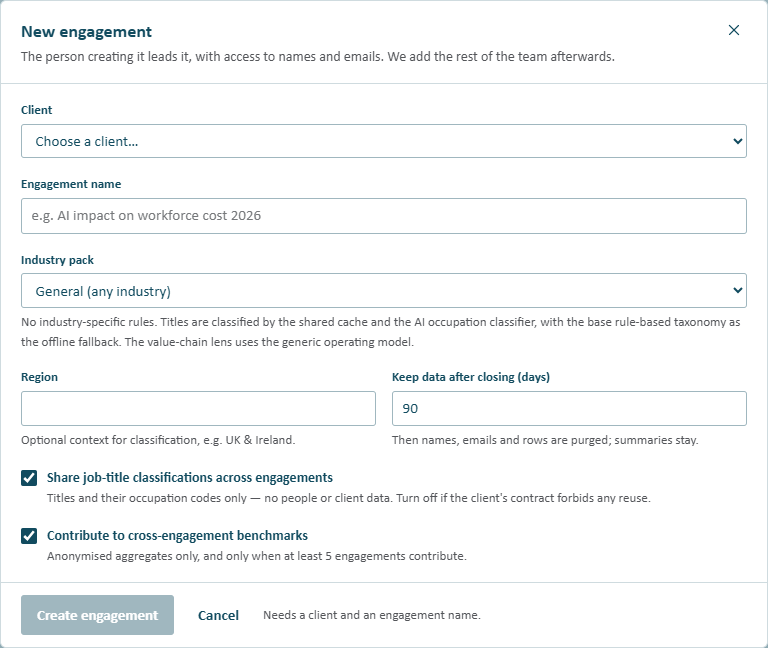
Choose New engagement. The dialog says The person creating it leads it, with access to names and emails. We add the rest of the team afterwards.
| Field | What it does |
|---|---|
| Client | Choose an existing client, or + Add a new client. |
| Client name and Sector | Only when adding a client. The sector gives the AI classifier industry context, for example Insurance services. Client names are unique (ignoring case). |
| Engagement name | For example AI impact on workforce cost 2026. Unique within the client. |
| Industry pack | General (any industry), Insurance & claims services or Banking — risk & compliance in the built-in reference data. The hint below the field describes the selected pack. See Industry packs. |
| Region | Optional context for classification, for example UK & Ireland. It's passed to the AI classifier with the sector. |
| Keep data after closing (days) | 0 to 3,650; the default is 90. Once the engagement is closed, names, emails and row-level data are purged after this many days. Summaries stay. |
| Share job-title classifications across engagements | On by default. Shares titles and their occupation codes only (no people or client data) through the shared classification cache. Turn it off if the client's contract forbids any reuse. |
| Contribute to cross-engagement benchmarks | On by default. Contributes anonymised aggregates only, and only when at least five engagements contribute; published figures are rounded. See Benchmarks. |
Until a client and an engagement name are filled in, Create engagement stays disabled and the footer says what's missing, for example Needs a client and an engagement name. Once they are, choose Create engagement. We become the engagement's lead, with PII access, and land on its Staff lists tab.
Clients are shared across the platform so engagements can be filed against them; every signed-in user can see the client list, but a client record holds nothing beyond its name, sector and notes. The app doesn't yet have a screen for editing or archiving a client; ask an administrator if a client's name or sector needs to change.
Industry packs
An industry pack is a deterministic, industry-specific layer chosen per engagement. A pack can add:
- overlay rules that classify industry job titles (for example the banking pack's financial crime, risk and compliance roles) before the shared cache and AI are consulted, with their own occupation codes;
- a value chain, such as the claims lifecycle in the insurance pack, used as the lens on the Overview tab;
- Copilot fit lists that place particular roles in the high or low fit tier.
The packs available, and what they contain, are reference data managed by administrators. The Methodology page lists every pack with its description and number of overlay rules.
The engagement page
The engagement header shows the status, industry pack, our role and PII access if we have it. Two actions may appear:
- Compare, when the engagement has more than one staff list. See Compare staff lists.
- Upload staff list, for leads and analysts while the engagement is active. See Uploading a staff list.
A closed engagement shows This engagement is closed (Everything here is read-only…, with how long until its personal data is purged); a purged one shows Personal data purged.
Staff lists tab
Each upload is a staff list. The table shows:
| Column | Meaning |
|---|---|
| Staff list | The name, which opens the staff list once it's Ready (or Summary only after a purge), and the source file name. |
| Status | Ready, Classifying, Upload incomplete or Summary only, plus Names & emails stored if identities were stored. |
| Employees | The headcount, or rows uploaded so far while an upload is incomplete. |
| Workforce cost | Total employer cost. |
| Uploaded | The date and who uploaded it. |
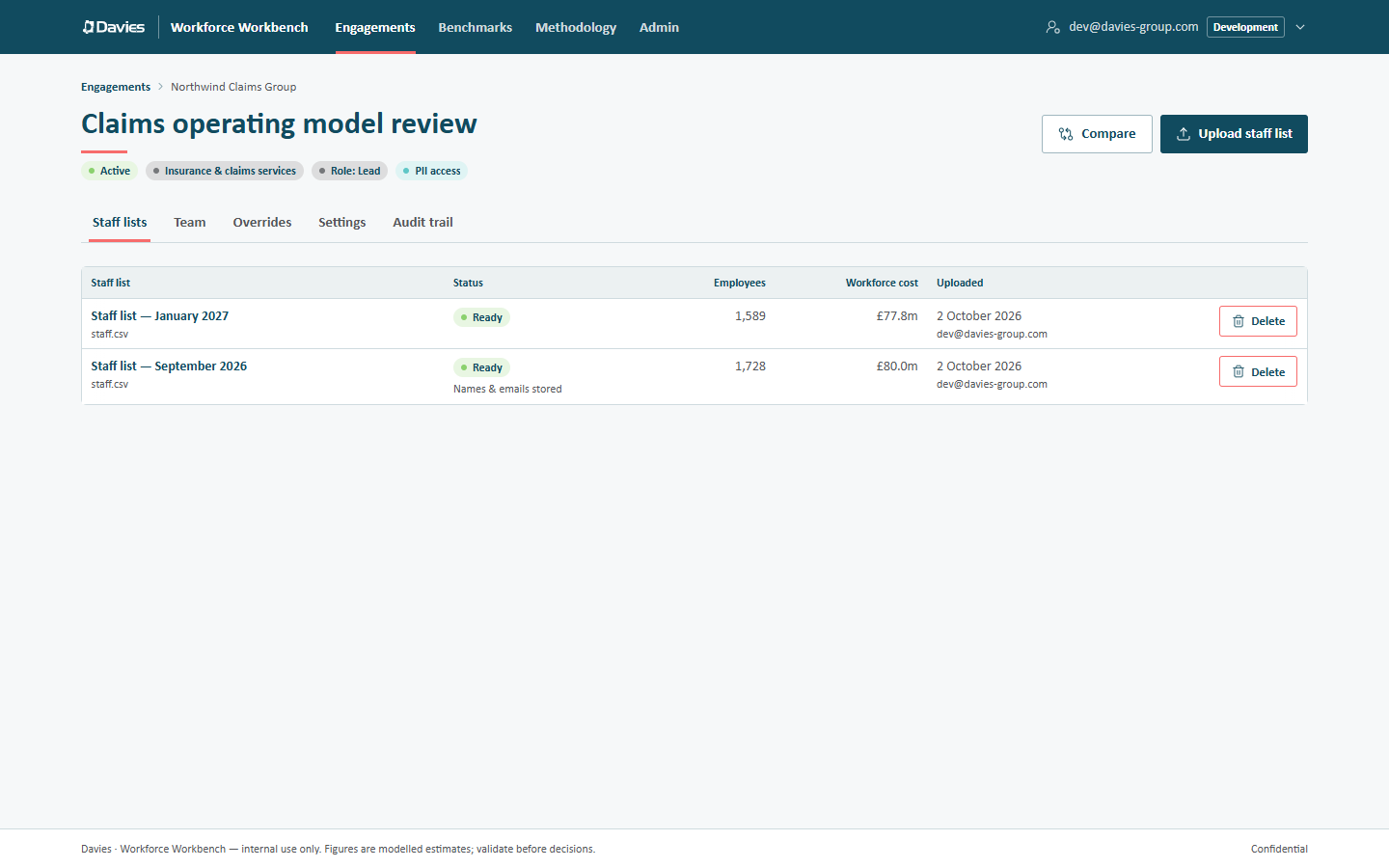
Actions for leads and analysts on an active engagement:
- Continue appears beside a staff list that is still Classifying. It resumes classification from where it stopped, with a progress bar. It only finishes classifying: it uses AI only if Classify job titles with AI was ticked when the list was uploaded, so a list uploaded without AI is never sent to the AI classifier on resume.
- Delete removes a staff list. The confirmation explains that this removes the staff list, its rows, stored names and emails, and its Copilot plans; the audit trail keeps a record of the deletion.
An upload that stopped while rows were still being sent (Upload incomplete) can't be resumed: there's no Continue for it. Delete it and upload the file again. Opening such a staff list says the same: The upload didn't finish.
Settings tab
Leads (and administrators) can change the engagement's Name, Industry pack, Region, Keep data after closing (days) and the two sharing options, then Save changes, while the engagement is active.
The settings are read-only, with the inputs disabled and a notice saying why, when:
- we're not a lead: Only the engagement lead can change these settings.;
- the engagement is closed: This engagement is closed, so its settings are fixed. Reopen it under Lifecycle to change them.;
- its personal data has been purged.
Changing the industry pack rescores the engagement's staff lists when we save (beside the button: Saving rescores this engagement's staff lists.). Each finished staff list is rescored with the new pack's rules, value chain and Copilot fit lists, on the reference data version it's pinned to. Overrides still come first, classifications from the AI are kept, and no AI is called.
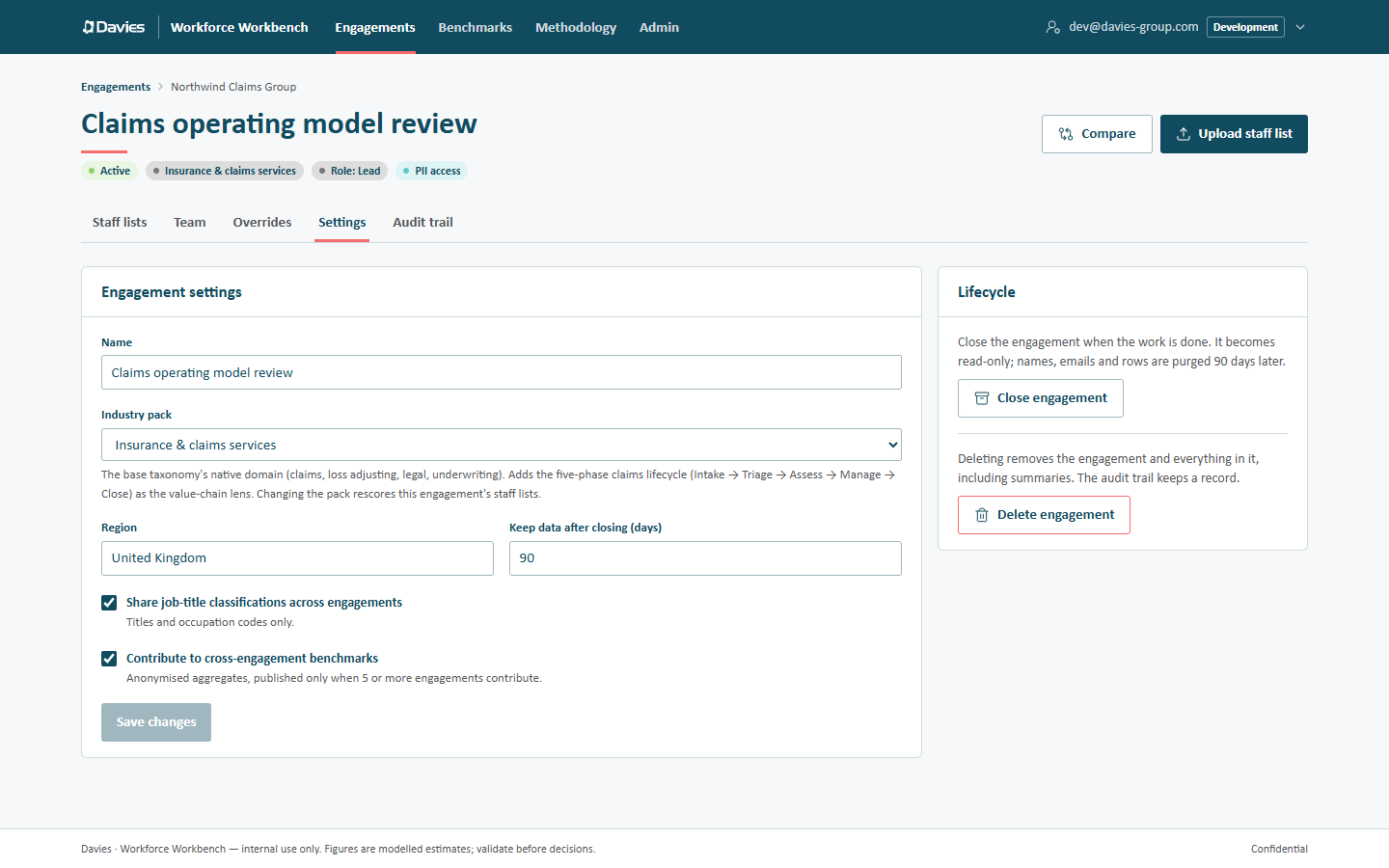
The Lifecycle card on the same tab closes, reopens, purges and (for administrators) deletes the engagement. See Closing an engagement.
The Report wording card, below the client brand, holds the engagement's own wording for its deliverables: a paragraph at the end of any report section, a replacement for the executive summary's value-concentration point, and word swaps such as Workforce cost to Cost to serve. Leads (and administrators) edit it while the engagement is active and choose Save wording. Otherwise the card is read-only and gives the same reason as the settings above it, for example Only the engagement lead can change these settings., or that the engagement is closed or purged; the Workbench also refuses a change to the wording of an engagement that isn't active. If the summary's value point is replaced, deliverables say The value concentration point is the engagement team's own wording. It never changes a figure, and purging the engagement clears it. Saving it is recorded in the audit trail as Updated engagement, without the wording itself. See Your own wording.
Overrides and Audit trail tabs
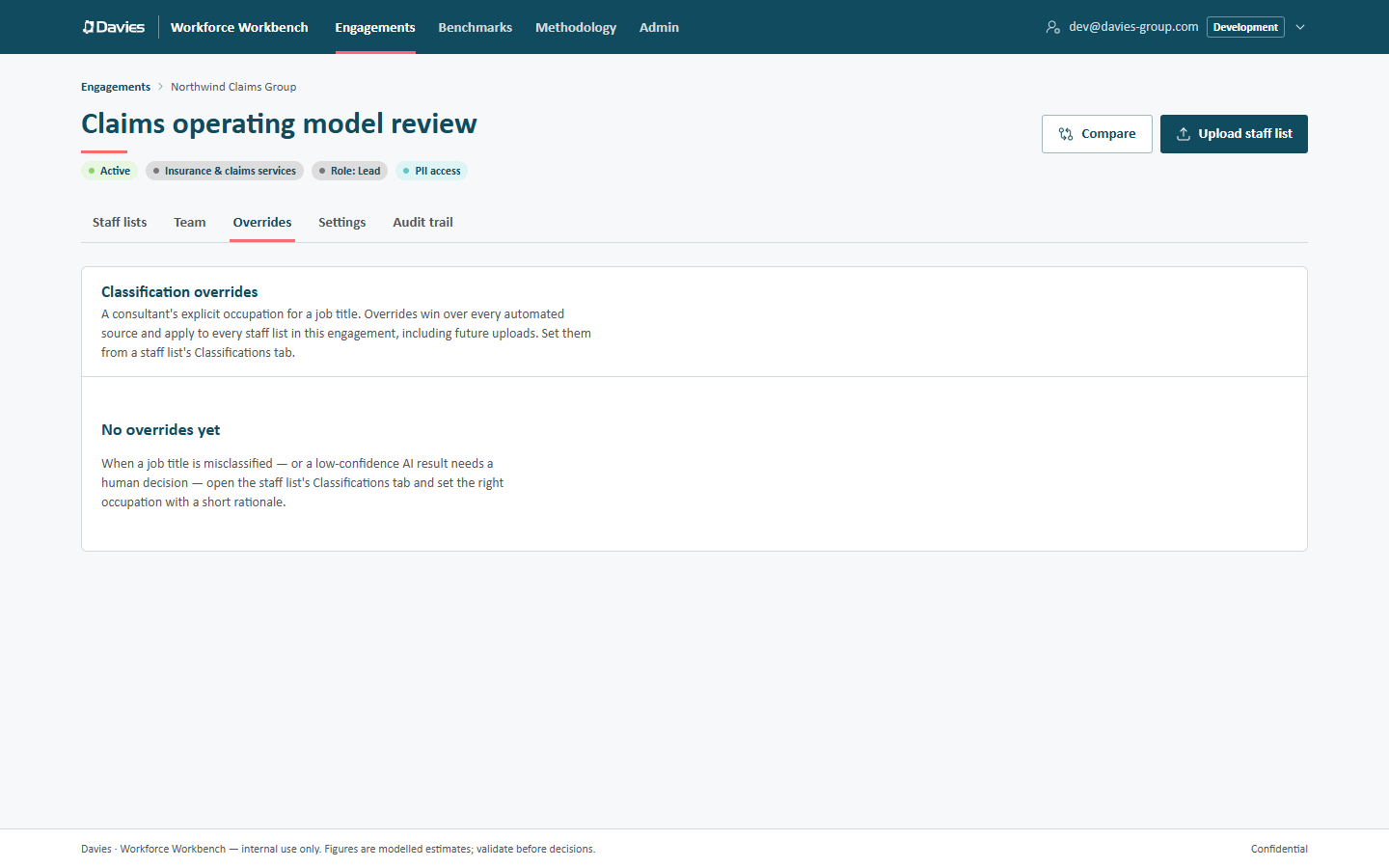
Overrides lists every classification override set for the engagement. See Classifications and overrides.
Audit trail (leads and administrators) lists every change, export and access to names and emails on the engagement. See Audit trail.
Client brand
The Client brand card on an engagement's Settings tab holds the client's logo, colours and font, for deliverables we co-brand or brand as the client's. It belongs to the client, so it applies to every engagement for that client. Administrators, the person who added the client and the lead of any of its engagements can add, change or remove it; everyone else sees it read-only.
Choose Add a brand (or Change brand), then:
- Logo: a PNG, JPEG or SVG of up to 250 KB. A transparent PNG or an SVG looks best. We guess whether the logo is designed for light backgrounds or is a white logo for dark ones; correct the guess under The logo is designed for. A light-background logo sits on a white panel over the cover colour.
- Primary colour: the cover, title bars and table headers, with white text on it, so it must be dark enough for white text (a contrast of 4.5:1). A lighter colour is refused with the ratio it reached.
- Accent colour: rules, highlights and the leading chart series. A very faint accent is allowed, with a warning.
- Secondary colour (optional): a third chart series. Without one, we use a tint of the primary.
- Font: one of the fonts installed with Windows and Microsoft 365, so decks and workbooks look the same on the client's machine.
The preview shows a co-branded cover and slide as we edit. Save brand records the change in the audit trail (Changed client brand); Remove brand returns every engagement for the client to Davies-branded exports. Files already downloaded keep the brand they were made with.