Users
Admin → Users lists everyone who can use the Workbench: Colleagues from allowed domains are added automatically the first time they sign in through Cloudflare Access. Deactivating someone blocks them straight away; their audit history stays.
The users table
| Column | |
|---|---|
| Person | Name (when known from single sign-on) and email. |
| Role | Member or Administrator. Change it from the drop-down. |
| Status | Active or Deactivated. |
| Last seen | When they last used the Workbench, or Never. |
| Deactivate or Reactivate. Our own row shows Signed in instead. |
Platform roles:
- Member: any Davies colleague using the Workbench. What they can do on an engagement depends on their role in its team. See Team and roles.
- Administrator: everything a lead can do on every engagement, plus the Admin area. Never implies PII access, and an administrator can't grant it to themselves.
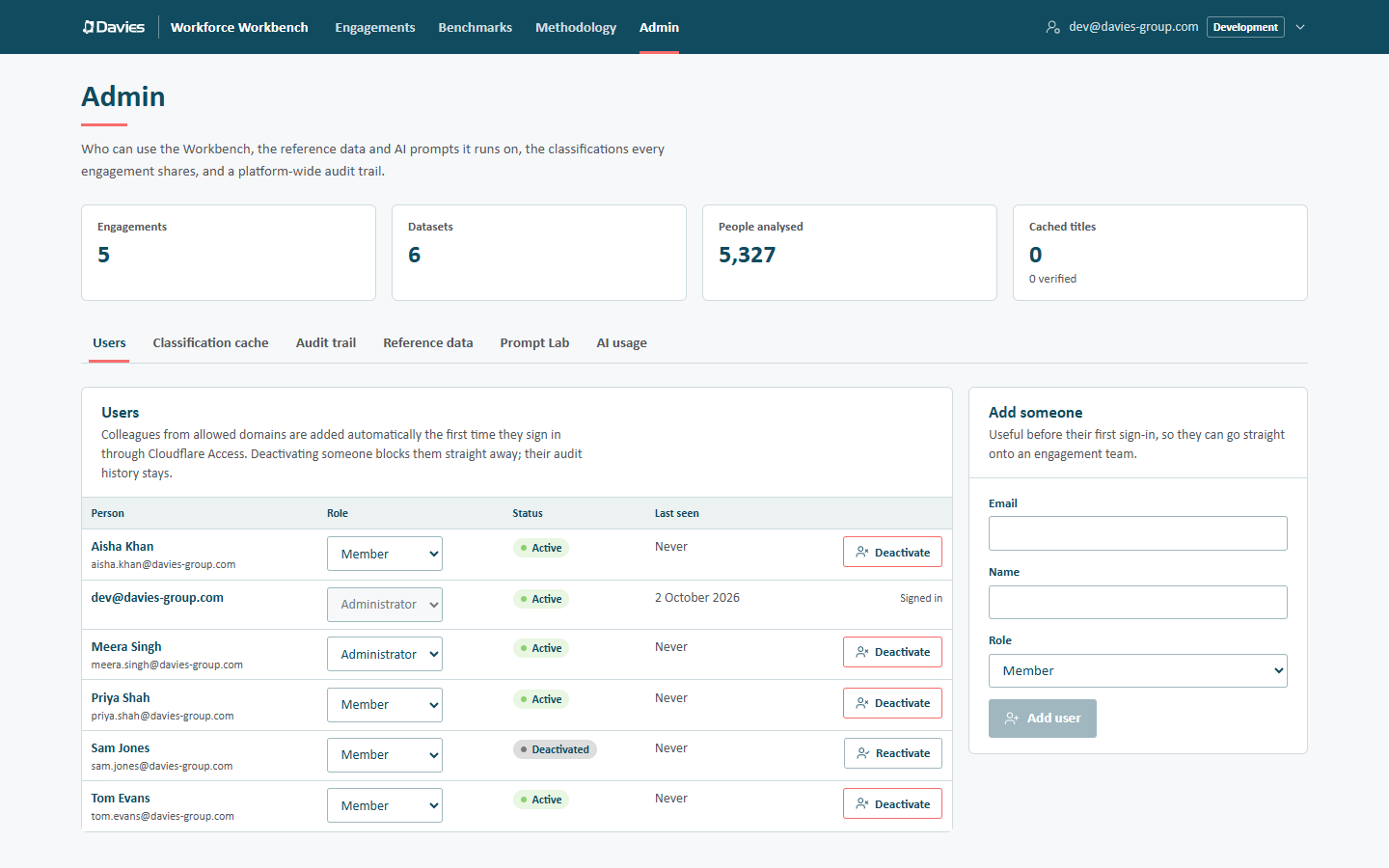
We can't change our own role or deactivate ourselves from this screen; another administrator has to. The Workbench also refuses to let the last active administrator give up the role: You're the only administrator — add another before removing your own access.
Adding someone
Add someone is useful before their first sign-in, so they can go straight onto an engagement team.
- Email: their Davies email.
- Name: optional; single sign-on fills it in later if blank.
- Role: Member or Administrator.
- Add user.
Adding a user doesn't send them anything; tell them the Workbench address. Their domain must still be allowed through Cloudflare Access for them to reach the app.
Automatic provisioning
The first time someone signs in, the Workbench creates their account if their email domain is on the platform's allowed list (ALLOWED_EMAIL_DOMAINS). Emails on the bootstrap list (BOOTSTRAP_ADMIN_EMAILS) become administrators when first provisioned. Everyone else sees This account hasn't been set up yet (Workforce Workbench is open to invited staff only…) until an administrator adds them here. Both lists are deployment settings; see the developer guide's configuration.
Deactivating
Deactivate blocks the person from the next request onwards, everywhere: engagement membership only counts for active users. They see This account has been switched off, a permission message rather than an error. Their memberships, the work they did and their audit history stay. Reactivate restores access with the same memberships.
Every change here is audited (Added user, Changed user).
Runbook
| Situation | Action |
|---|---|
| Someone needs access | They sign in; if their domain is allowed, they're a member. A lead then adds them to the engagement team, with PII access only if needed. |
| Someone needs to be an administrator | Change their Role to Administrator. |
| Someone leaves | Deactivate. |
| Someone can't be found in a team picker | They haven't signed in yet, or they're deactivated. Add or reactivate them here. |